Abcaree AI/ML and GenAI Services – Quick Help
Abcaree provides Pay-as-You-Go AI services for Academic Services and Monte Carlo Simulation. This guide explains how to buy or top up a coupon, log in using your coupon profile, and complete the Research Assessment workflow.
Abcaree Main Modules
The current version of Abcaree AI services includes two main modules:
Academic Services (SMARTS)
- Research Article/Report Assessment (RA)
- Literature Survey (LS)
Monte Carlo Simulation (MCS)
- Single Input – Single Output UWOC (SISO)
- Single Input – Multi Output UWOC (SIMO)
All Abcaree service modules follow five work steps:
- Module help summary
- User required inputs: file upload or simulation attributes
- Invoice details and payment using coupon redemption
- Report generation
- View and download the output files
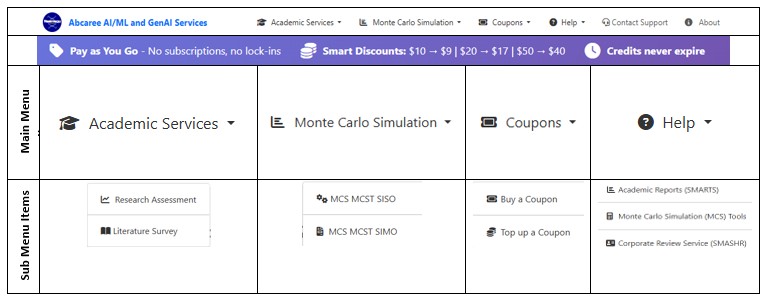
Pay-as-You-Go – Coupon Purchase and Top Up
Abcaree services are available on a Pay-as-You-Go basis. You do not need to register or subscribe. Before using an Abcaree service, you need a valid coupon.
Buy a Coupon
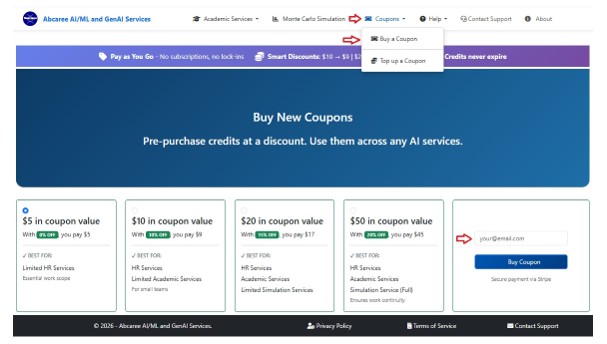
- Select Coupons from the main menu.
- Click Buy a Coupon.
- Select the coupon value you need.
- Enter your email address.
- Click Buy Coupon.
- Complete the Stripe payment process.
- Check your inbox for the coupon verification email.
- Keep your coupon code and email together as your Abcaree access profile.
| Coupon Value (USD) | Discount | You Pay (USD) | Usage Scope Example |
|---|---|---|---|
| 5 | 0% | 5 | One Research Assessment - SMARTS Services |
| 10 | 10% | 9 | Two Research Assessments - SMARTS, or one MCS service |
| 20 | 15% | 17 | One Literature Survey - SMARTS, or two MCS services |
| 50 | 20% | 40 | Two Research Assessments and two Literature Surveys, or three MCS services |
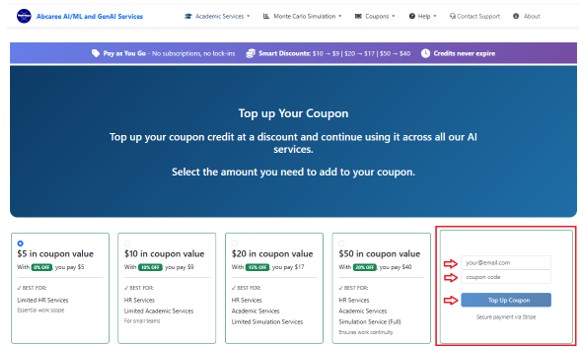
Top Up a Coupon
When your coupon balance becomes lower than the required service cost, Abcaree will guide you to the top-up page.
- Select the top-up value.
- Enter the email linked to your coupon.
- Enter your coupon code.
- Click Top Up Coupon.
- Complete the Stripe payment process.
Log In Access
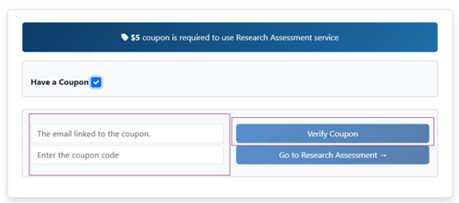
When you select one of the Abcaree service modules, the system asks you to provide a valid coupon code and the associated email address (Fig. 3).
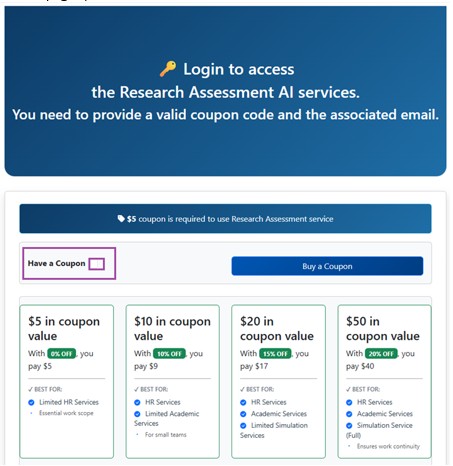
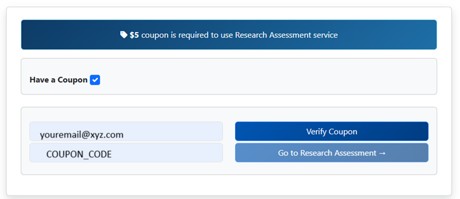
- Tick the Have a Coupon checkbox.(Fig. 4)
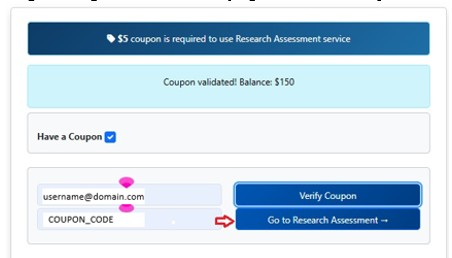
- Enter the email associated with your coupon (Fig. 5A).
- Enter your coupon code (Fig. 5A).
- Click Verify Coupon. (Fig. 5B)
- If the coupon profile is valid, click Go to ... →. (Fig. 5B)
Academic Services AI Reports Technology Solution (SMARTS)
SMARTS is a specialised service designed to assist postgraduate students, tutors, and supervisors in preparing research articles for submission. It transforms draft documents into reviewer-ready reports through a streamlined five-step process.
The AI engine evaluates key academic and technical aspects of the work, helping users avoid common reviewer pitfalls.
The 5-Step Research Assessment Journey
- Reports Help Summary: Review the service summary and requirements.
- Upload Files: Select the AI service and upload the required document.
- View and Pay Invoice: Redeem the coupon and confirm the service cost.
- Generate AI Reports: Run the AI assessment.
- View and Download Reports: Access all generated output files.
Research Assessment Workflow
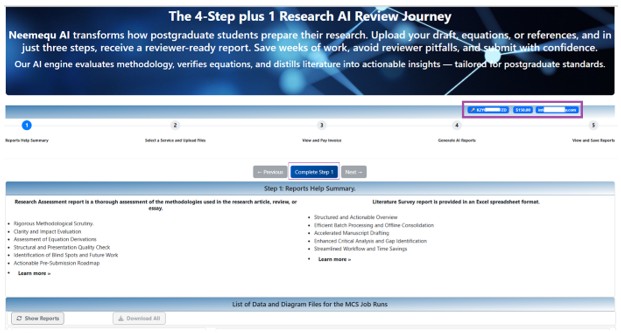
Step 1 – Research Assessment Help Summary
This page introduces the selected AI service and explains the complete workflow before processing begins.
- Review the service capabilities.
- Review the expected output reports.
- Review the five-step workflow.
- Click Complete Step 1.
Step 2 (Fig. 7) – Uploading Files
Step 2A (Fig. 7A) - Upload the research manuscript that you want Abcaree AI to analyse.
- Supported formats: PDF and DOCX.
- Click the upload icon or drag and drop the file.
- Only one research article should be uploaded for each assessment.
- Click Complete Step 2.
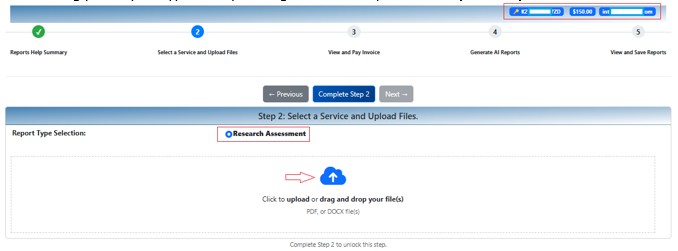
Step 2B (Fig. 7B) – Select Your Research Article
Click the upload area, browse to your draft manuscript, select the PDF or DOCX file, and click Open.
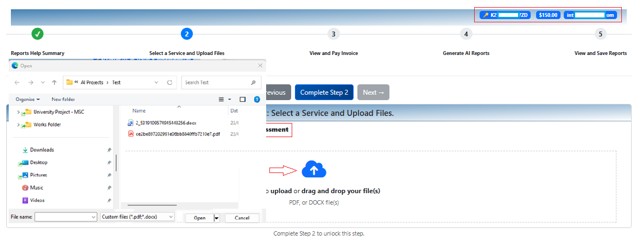
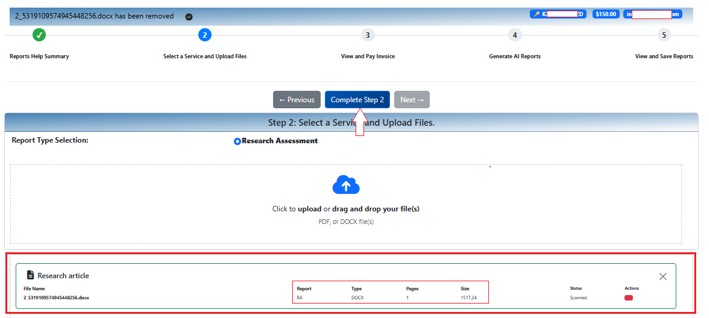
Step 2C (Fig. 7C)– Upload Completed Successfully
After upload, the system displays the file name, report type, format, page count, file size, and upload status.
Verify that the uploaded file is the correct version. If needed, remove it using the red action button and upload another version.
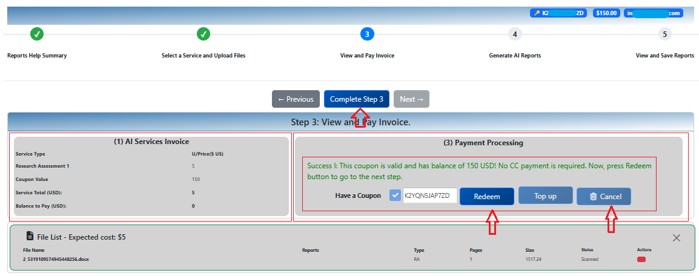
Step 3 (Fig. 8) – Invoicing and Payment
Step 3 (Fig. 8) – Cost Invoice and Coupon Redemption
Review the invoice before analysis begins. The invoice shows the selected AI service, processing cost, available coupon balance, and remaining payment.
- Click Redeem to use your coupon balance.
- Click Top Up if more funds are required.
- Click Cancel to stop processing.
- Click Complete Step 3 after payment or coupon redemption.
Step 4 – Report Generation
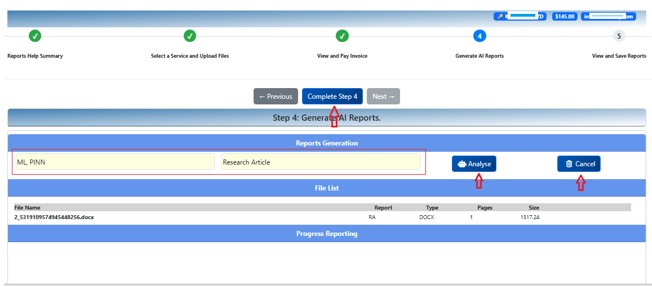
Step 4A – Report Attributes Setup
Enter the keywords associated with the uploaded research document, separated by semicolons, and select the article type.
Click Analyse to begin the AI assessment.
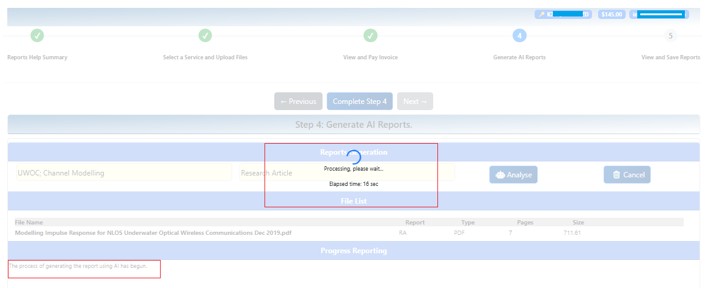
Step 4B – Report Generation Processing
The AI engine processes the manuscript and prepares the output reports.
- Extracts manuscript content.
- Analyses the document.
- Evaluates mathematical derivations.
- Validates references and technical consistency.
- Prepares multiple output reports.
Please do not close the browser until processing has completed.
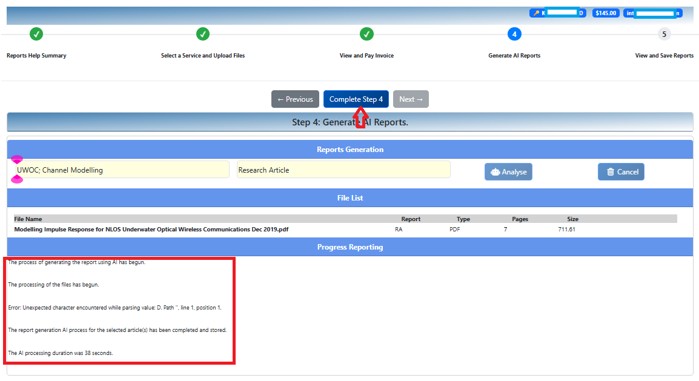
Step 4C – Report Generation Completed
When processing finishes, the progress window displays processing messages, completed tasks, warnings if any, and total processing time.
Click Complete Step 4.
Step 5 – Viewing and Downloading
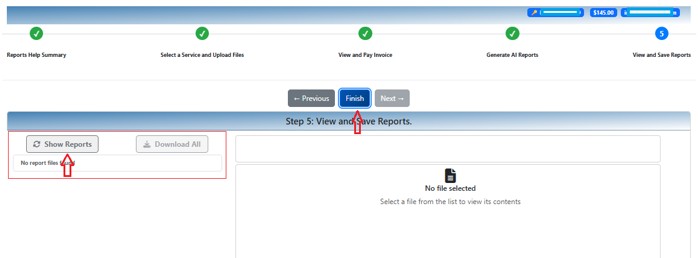
Step 5A – Viewing the Report List
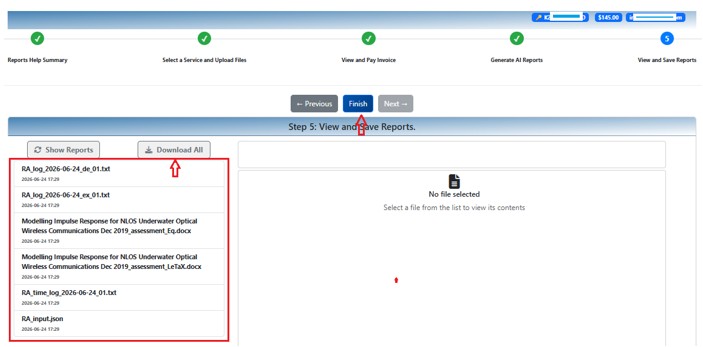
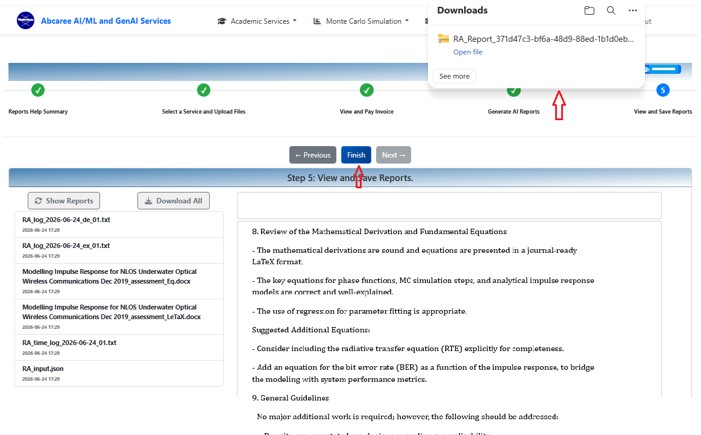
Click Show Reports to retrieve the complete list of generated files. Click Download All to download the entire package as a ZIP archive.
Step 5B – Review Generated Report List
The generated reports are listed in the left panel.
- Research Assessment Report in DOCX format
- Literature Survey report in Excel format, when applicable
- LaTeX Equations Report
- AI Processing Log
- Processing Time Log
- JSON input attribute summary
Step 5C – Download and View Reports
You may preview individual reports inside the browser or download all reports together. For best performance, large reports should be downloaded and viewed locally.
Generated reports remain available until deleted according to the system retention policy.
Best Practices
- Upload the latest version of your manuscript.
- Ensure mathematical equations are complete and readable.
- Include all references before starting the assessment.
- Review the AI recommendations before submitting your manuscript to a journal.
- The AI assessment is intended to improve research quality. It does not generate research articles or replace the author’s scientific contribution.
- Save a local copy of all generated reports for future reference.