Abcaree AI Reports Technology Solution (SMARTS) Overview
SMARTS is a specialized service designed to assist postgraduate students, tutors, and supervisors in preparing their research articles for submission. It transforms your draft documents into reviewer-ready reports through a streamlined 5-step process.
The AI engine rigorously evaluates key aspects of academic work, saving you weeks of effort and helping you avoid common pitfalls. SMARTS is architected, designed, implemented, and published by a three-member team of researchers who actively publish in Q1 and Q2 scientific and engineering journals, with an accumulated h-index of 145.
The 5-Step Research AI Review Journey
- Regents Help Summary: An initial step to guide you and summarize the requirements.
- Select a Service and Upload Files: This is the core step, which requires two actions:
- Selecting the AI service, which delivers the target report
- Uploading the required document(s)/file(s) in PDF format
- View and Pay Invoice: Review and settle the invoice for the service.
- Generate AI Reports: The system processes your files and generates the requested reports.
- View Save Reports: Access, view, and download all your previously generated reports.
AI Service Description
This is the most critical step: defining the kind of analysis you need. The current version of Abcaree AI Academic Reports Solution provides three types of reports:
| Report Name | Symbol | Max Number of Input Files | Max File Size (MB) | Cost (USD) |
|---|---|---|---|---|
| Research Reference List | RL | 0 File/ Populate three attributes | N/A | 4 |
| Literature Survey | LS | 3 | 15 | 15 |
| Equations Assessment | EA | 1 | 20 | 6 |
| Research Assessment | RA | 1 | 20 | 5 |
Table 1. AI Academic Services Required Input and Cost.
RL Research Reference List Report
The Research Reference List AI Service helps researchers rapidly identify relevant scholarly references for new or existing research work. These references help to initiate and enhance a proposed technical progress report, research article, or MSC/PhD research project. To build such a list, the research article framework needs to be defined using the following three foundational elements: article title, keywords and a brief description. The brief description should typically contain the underlying problem the research aims to address, coupled with the solution outlines that will resolve it. Hence, the research article title should be a high-level abstraction of the research's foundation elements: (1) “problem and challenges” and (2) “solution approach”. Sequencing these two elements in the title is a matter of relevance. If you don’t provide a good set of keywords, the AI machine will be able to detect that and proceed as it thinks are the most relevant keywords.
Best For: Starting a new resarch or expanding an existing one.
Input: The three foundational resarch framework elements: article title, keywords and a brief description.
Output:A ranked research reference list (Excel) and a draft article DOCX document
LS Literature Survey Report
This service helps you manage and synthesize existing literature, providing a structured overview.
Best For: Organizing and analyzing a collection of research papers.
Input: A batch of research papers or references (e.g., PDFs).
Output: An actionable overview in an Excel spreadsheet format.
EA Equations Assessment Report
This service focuses on verifying the mathematical and theoretical foundations of your work.
Best For: Research articles in technical fields like engineering, physics, and computer science.
Input: Your document containing equations and relevant keywords.
Output: A derivation verification report (likely in PDF/DOCX format).
RA Research Assessment and Review Report
This service provides a thorough assessment of the methodological and structural quality of your manuscript.
Best For: Research articles, review articles, and essays.
Input: Your draft manuscript, relevant keywords, and the type of the article.
Output: A comprehensive report (likely in PDF/DOCX format).
Research Reference List (RL) Reports
The Research Reference List AI Service helps researchers rapidly identify relevant scholarly references for new or existing research work. These references help to initiate and enhance a proposed technical progress report, research article, or MSC/PhD research project. To build such a list, the research article framework needs to be defined using the following three foundational elements: article title, keywords and a brief description. The brief description should typically contain the underlying problem the research aims to address, coupled with the solution outlines that will resolve it. Hence, the research article title should be a high-level abstraction of the research's foundation elements: (1) “problem and challenges” and (2) “solution approach”. Sequencing these two elements in the title is a matter of relevance. If you don’t provide a good set of keywords, the AI machine will be able to detect that and proceed as it thinks are the most relevant keywords.
What it Analyses:
- The research article framework: Checks if there are valid and reliable research roots for your research idea.
- Valid Research References:Each refence must be associated with your research based on valid justification and good reasons.
Key Benefits:
- A ranked research reference list (Excel).
- A draft article DOCX document, which contains::
- An introduction summary
- Related Work Review Summary (RWRS)
- IEEE-style reference list
- Framework criteria:The Input data is in a JSON format.
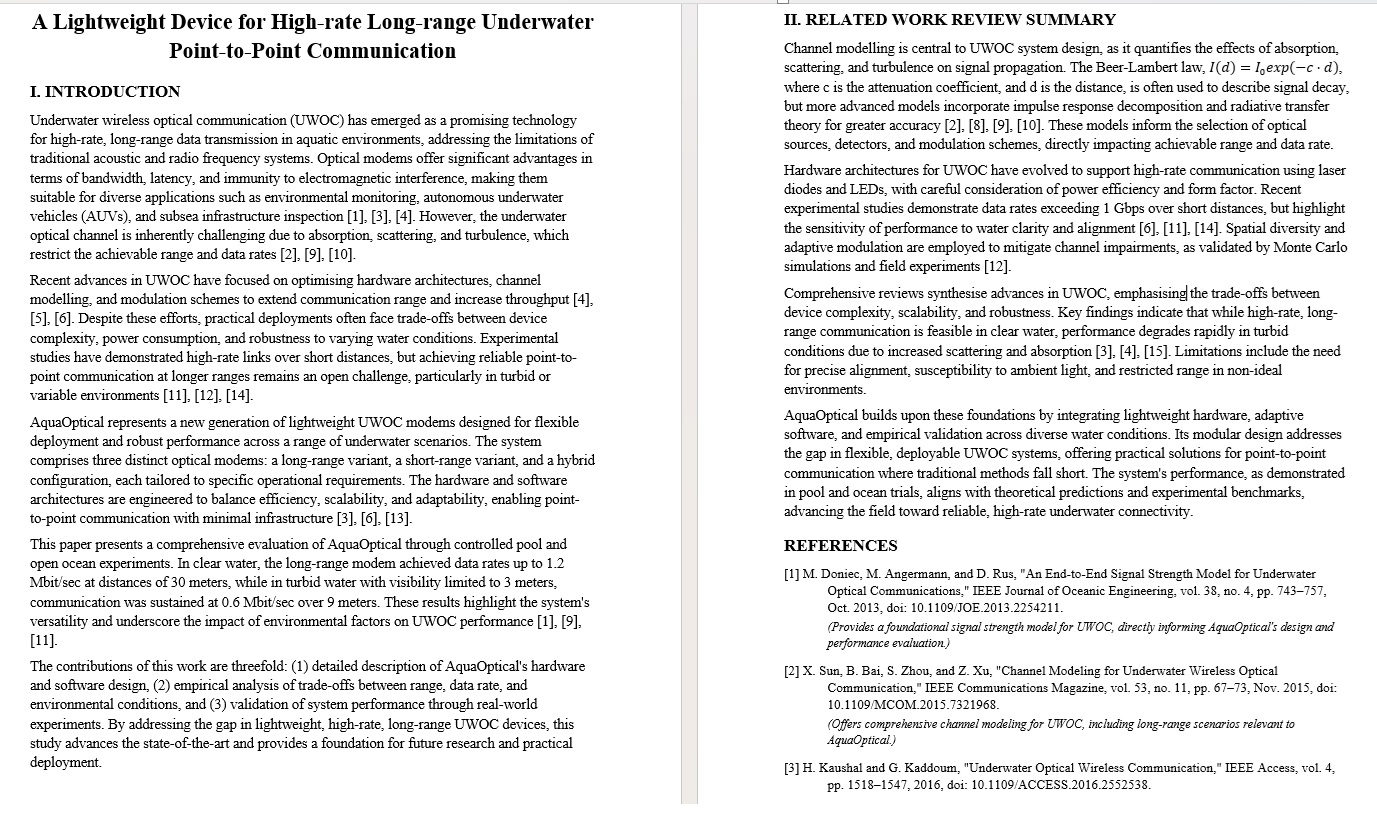 | 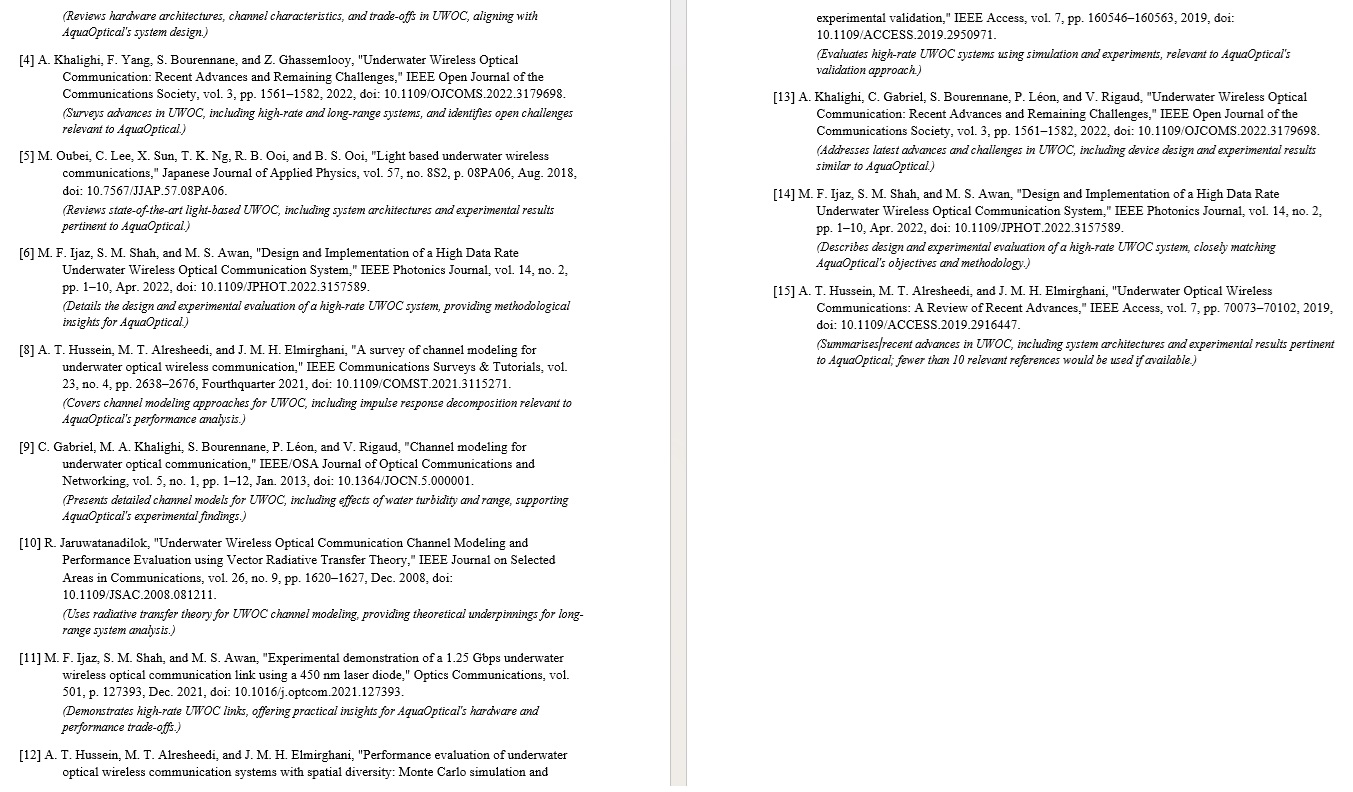 |
Fig.2-Research Article Framewaork Definition Document: Introduction, Related Work Review Summary, Refernces.
Literature Survey (LS) Report
This service helps you manage and synthesize existing literature, providing a structured overview for your literature review chapter or section. It is common for postgraduate students to spend a lot of time simply identifying suitable references.
The LS report utilizes eight aspects to help you assess the alignment with the underlying objectives of your research. Additionally, the LS reports craft a reference citation in IEEE style. In this manner, this report will save you a lot of time in identifying the most suitable references for your research article and thesis.
Key Benefits:
- Structured and Actionable Overview: Summarizes key points from multiple papers into a consistent, sortable table.
- Efficient Batch Processing and Offline Consolidation: Analyses many papers at once and consolidates the information.
- Accelerated Manuscript Drafting: Provides a ready-made structure to write your literature review quickly.
- Enhanced Critical Analysis and Gap Identification: Helps you easily compare studies and identify research gaps.
- Streamlined Workflow and Time Savings: Dramatically reduces the time spent manually organizing literature.
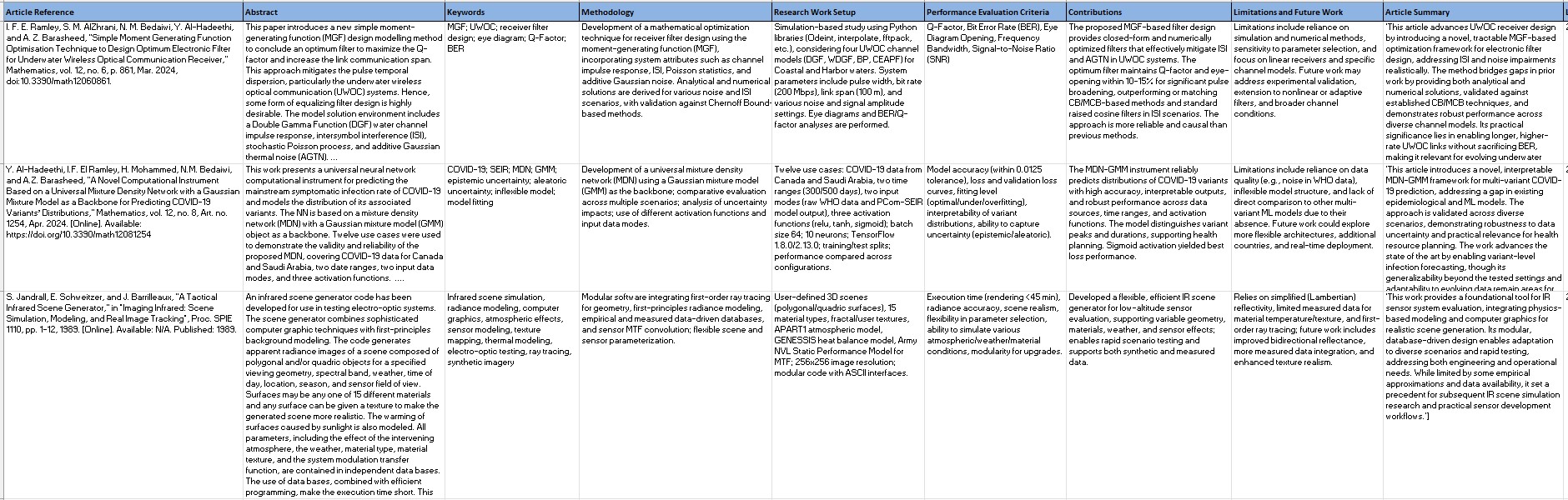
Fig.3- Literature Survey Report
Equations Assessment (EA) Report
This service focuses on verifying the mathematical and theoretical foundations of your work. When you try to establish the mathematical foundation elements of your research, you need to make sure that these foundations are solid, have valid logic and are linked to the scientific and engineering principles.
That's what the Equations Assessment report provides for you. This report is your honest helper and will tell you where you got it right and where you got it wrong. Besides that, this report presents the fundamental reasons for the right and wrong, so you can avoid pitfalls and better connect to the mathematical principles.
What it Analyses:
- Mathematical Rigour and Correctness: Checks for errors in derivations and calculations.
- Validation of Physical and Computational Models: Ensures your models are theoretically sound.
- Identification of Notational Ambiguities: Points out unclear or inconsistent use of symbols and notation.
- Expert Endorsement of Technical Soundness: Provides confidence in the technical core of your paper.
- Actionable Recommendations for Enhancement: Suggests ways to strengthen your mathematical arguments.
- Foundation for Reproducibility: Ensures others can reliably reproduce your work.
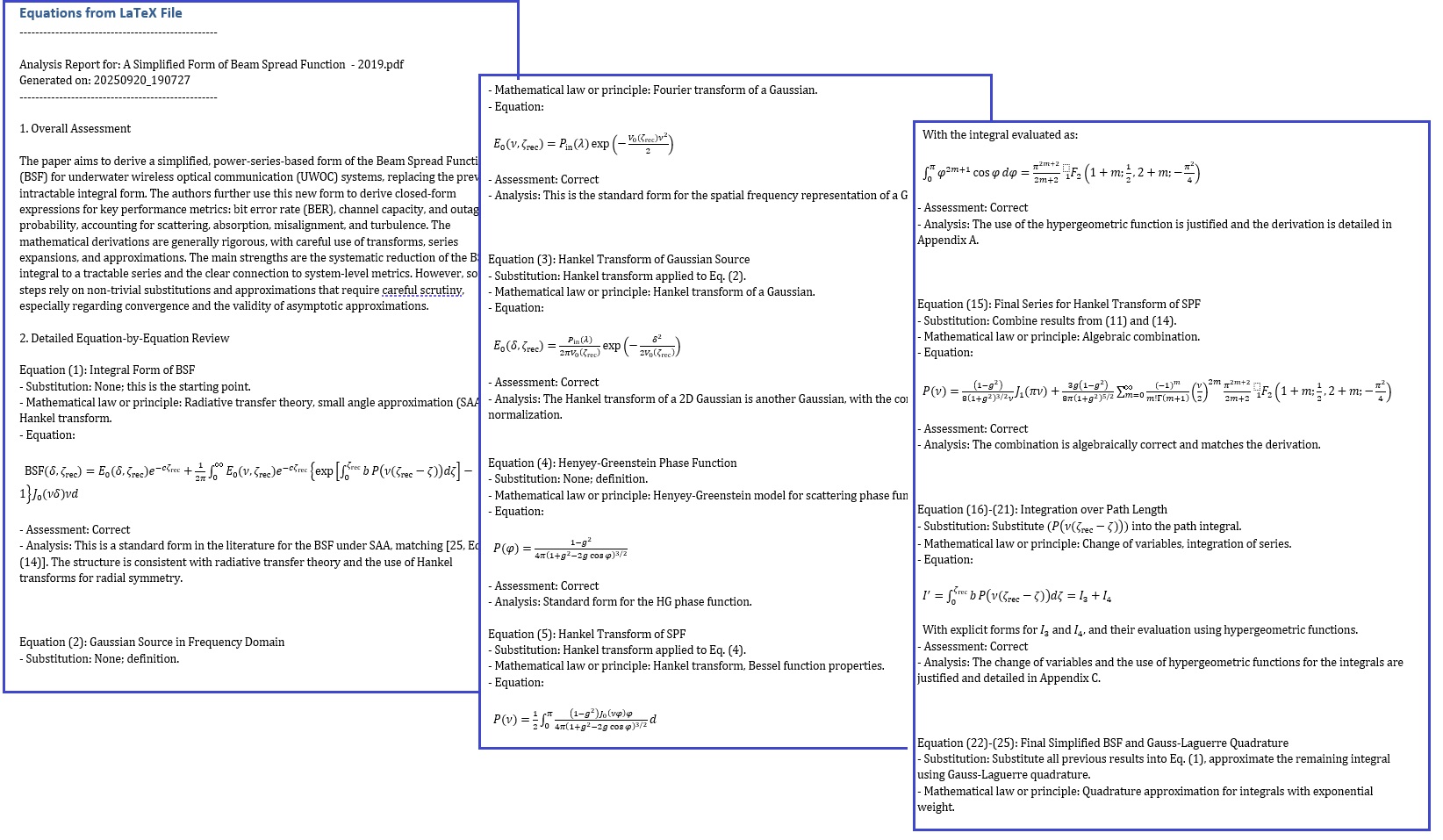
Fig.4-Research Article Equation Derivation Assessment Report.
Research Assessment and Review (RA) Report
This service provides a thorough assessment of the methodological and structural quality of your manuscript. This report offers a six-fold review, each in two forms: strengths and weaknesses, following the format of what, why, and how.
In addition to three groups of evaluation questions, this is similar to the typical reviews of submitted (research or review) articles. This review approach is a powerful tool for your quarterly research progress that you submit to the supervisory committee. The RE report follows the authoring approach of what is wrong before what is right. Consequently, the RE report reduces the time required to author a high-impact, successful research article and your PhD thesis.
What it Analyses:
- Rigorous Methodological Scrutiny: Evaluates the soundness of your research methods.
- Clarity and Impact Evaluation: Assesses the clarity of writing and the potential impact of the work.
- Structural and Presentation Quality Check: Reviews the organization, flow, and formatting.
- Identification of Blind Spots and Future Work: Highlights overlooked limitations and suggests areas for future research.
- Actionable Pre-Submission Roadmap: Provides a clear list of improvements to make before submission.
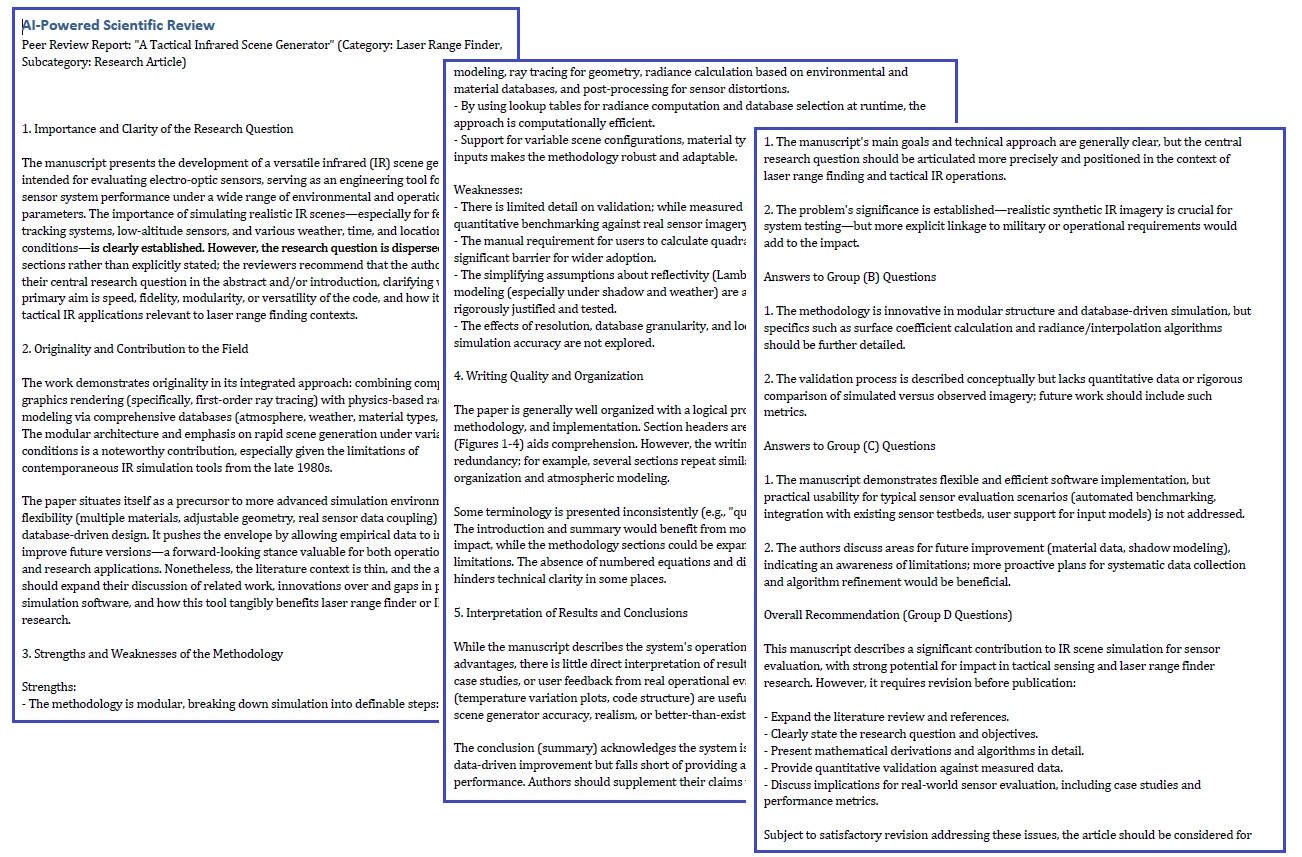
Fig.5-Research Article Assessment Report.
Viewing and Saving Your AI Reports
Once your report(s) are generated in step (4), you can access them in step (5): "View Save Reports" section.
- File Viewer: This section displays a list of all your saved reports, organized by the original uploaded file.
- Report Formats: You will find your reports in various formats, including:
- PDF (e.g., A_Tactical_Infrared_Scene_Generation_assessment_20251022_215154.pdf)
- DOCX (e.g., A_Tactical_Infrared_Scene_Generation_assessment_20251022_215156.docx)
- XLSX (Primarily for Literature Survey reports, e.g., Research_Literature_Survey_list_2025-10-10-02_01.xlsx)
- Navigation: You can view, download, and manage all your historical reports from this centralized location.
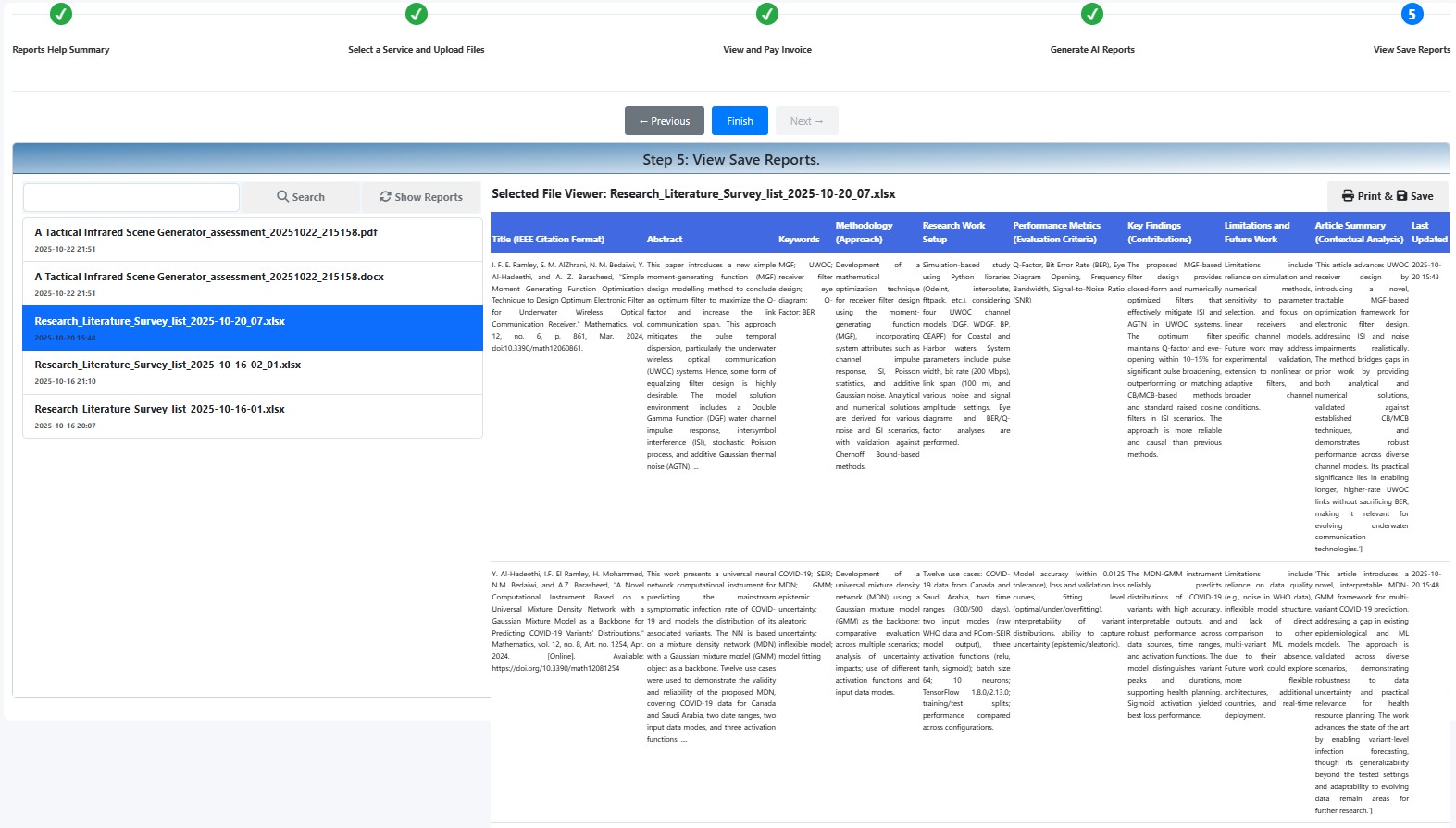
Fig.6-Report List and Report Viewer.
By following this structured journey, you can leverage AI to enhance the quality, rigour, and clarity of your academic research before submission.
Steps to Generate the SMARTS Reports
The SMARTS application has been constructed in a wizard-style dialogue. The application's vertical menu item is located on the left-hand side of the main screen.
Step 1: Reports Help Summary
Once you press the Academic AI Review menu item, you will land on the screen of the first step of the wizard. This step is a summary of help for the three AI services. Each summary service's help includes a list of benefits and a "Learn more" anchor button that takes you to the complete help for that service.
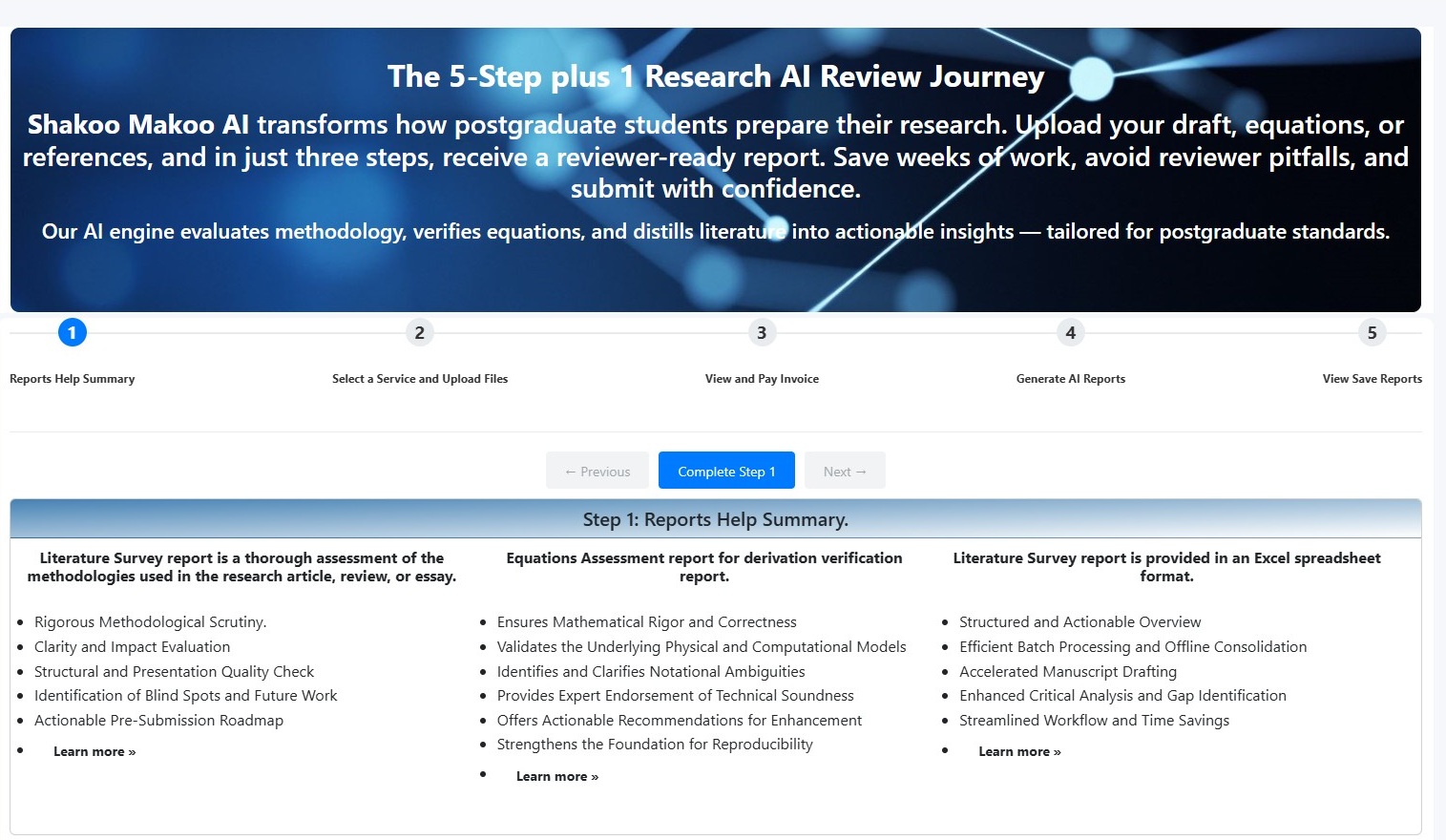
Fig.7: Step 1-SMARTS Main Page.
Step 2: Upload File(s) / Populate Attributes
Once you are familiarized with the underlying benefits of each service, you can press the complete step button. Now, you will be in a position to select the most needed academic service.
Service selection is via a mutually exclusive three-radio-button selection. Once you select a service, the SMARTS app lets you upload the required number of PDF files and sizes for that service.
Note: The LS service file size is 15 MB, while the RA and EA service file sizes are set to 20 MB. The reason is that the LS service does not need diagrams. Hence, if the file size exceeds 15 MB, try removing some diagrams before uploading.
Important: RA and EA services can only operate on one file at a time, while LS service allows you to submit up to three files at a time. If you need the LS for nine files, you will need to run this service 3 times.
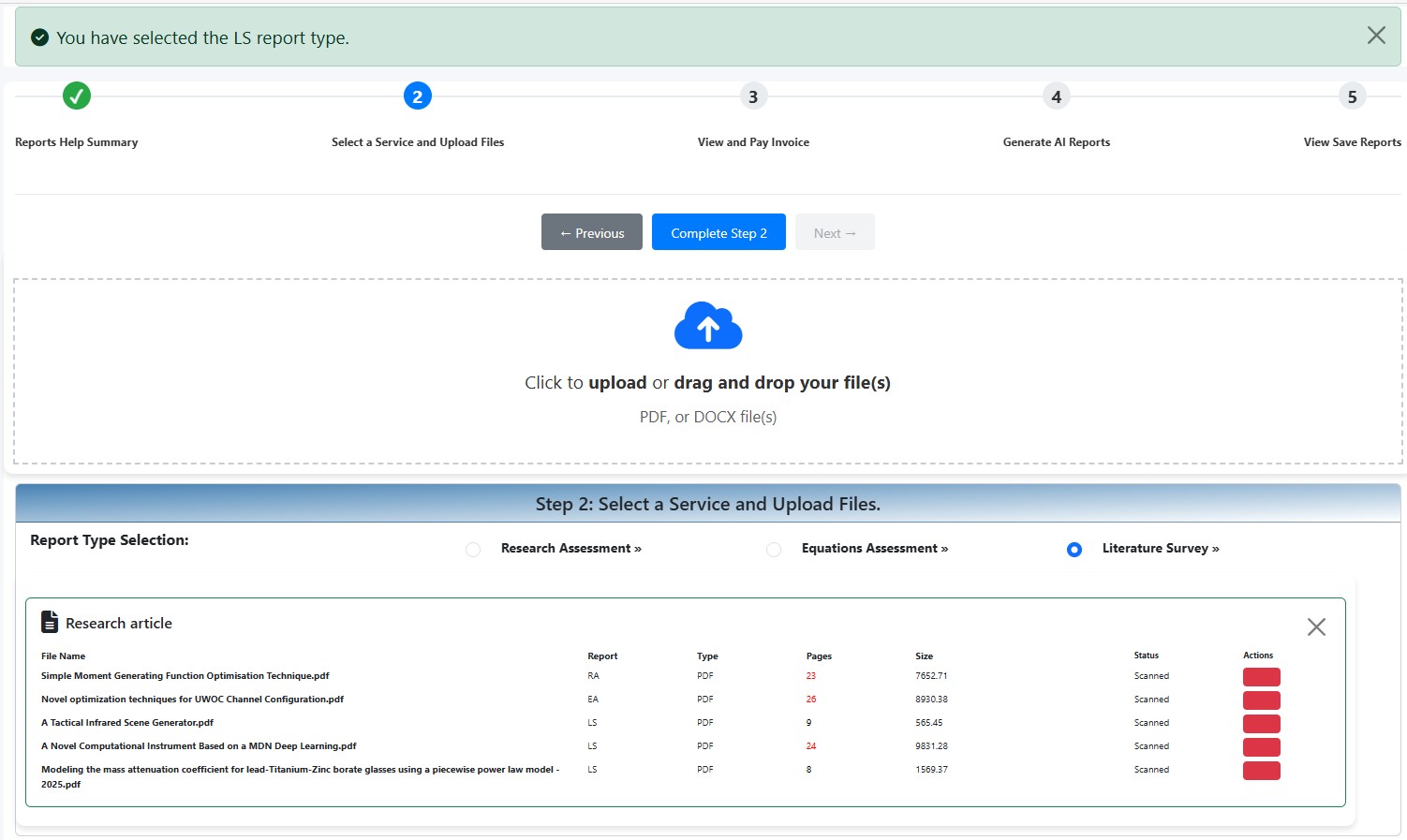
Fig.8: Step 2-SMARTS Wizard Second Step - Upload Files(s).
Step 3: View and Pay Invoice
Review the invoice and enter card details to process payment.
- (a) Reviewing the Invoice: You can find the invoice in the top-left corner of the screen. It displays the selected AI services for each file, along with their corresponding costs in USD. The total amount due is shown at the bottom of the item list on the invoice. If you are not satisfied with your selection of AI services or the costs, you have the option to cancel. To cancel, click the "Cancel" button. The application will then return you to the first step.
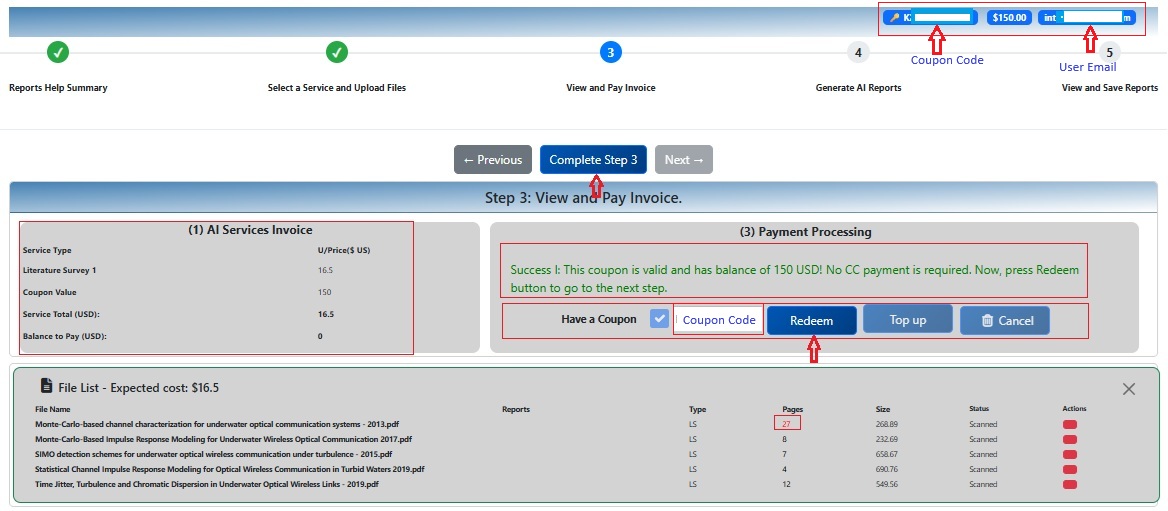
SMART Step 3 (a): View and Pay Invoice - Reviewing the Invoice
- (b) Entering an Eamil: To proceed, please enter a valid email address linked to your credit card (CC). After entering the email, the "Has a Coupon" checkbox and Coupon Code field will become active.
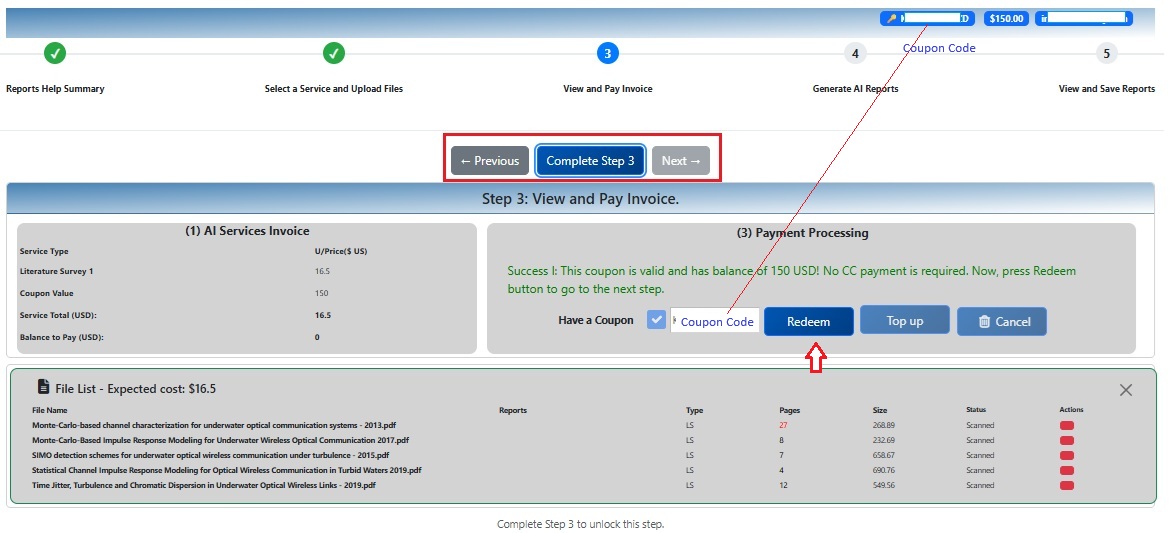
SMART Step 3 (b): View and Pay Invoice - Entering the Email
- (c) Entering the Coupon Code: Once you provide the email, the "Has a Coupon" checkbox and the Coupon Code field will become active. If you have a coupon code, please enter it; if not, you can proceed directly to the credit card (CC) payment stage.
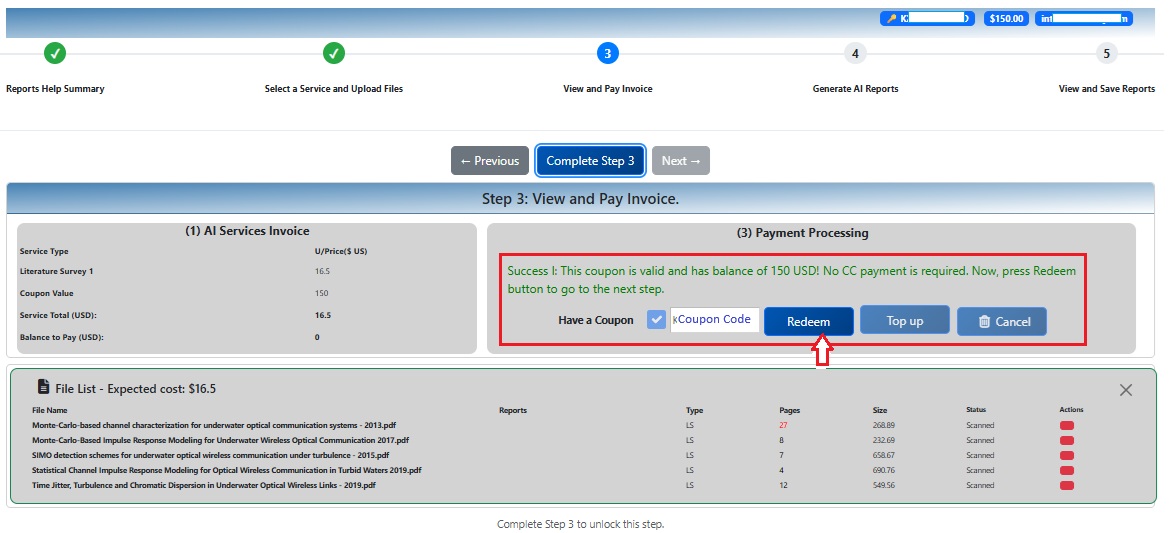
SMART Step 3 (c): View and Pay Invoice - Has a Coupon and Entering the Coupon Code
- (d) Redeeming the Coupon or Credit Card Payment: If you have an active coupon with a valid balance, the application will calculate the final amount due. If the total invoice amount is zero, the "CC Payment" button will be inactive, indicating that you can proceed to the report generation step. If the total is greater than zero, you will need to click the "CC Payment" button to move on to the next step.
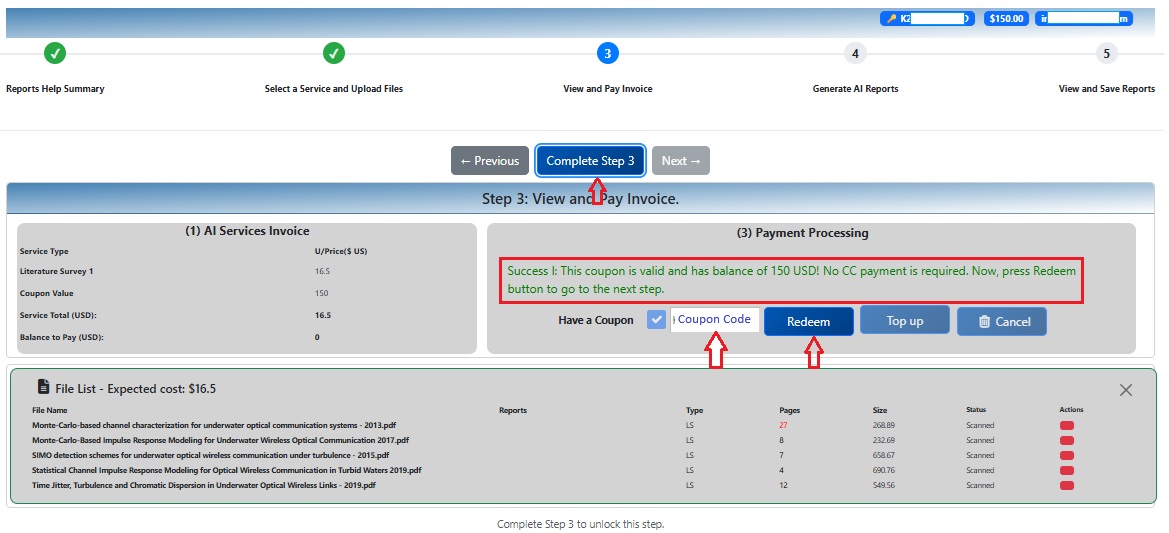
SMART Step 3 (d): View and Pay Invoice - Redeeming the Coupon or CC Payment
Step 4: Generate AI Report
Now you are ready to execute the "Generate AI Report" step. The step screen includes three sections:
| Section | Contents | Purpose |
|---|---|---|
| (a) The report generation | 1- Keyword field 2- Research article type 3- Uploaded file list 4- Command button |
To define the frame of the article assessment and complete the generation of the target report. |
| (b) The Progress report | Report generation progress report | To keep you informed about what's going on. |
| (c) The real-time progress indicator | Real-time timer | Progress timeline. |
Table 2.-The Sections of the Fourth Step
Note: RA and EA reports need you to enter the keyword(s) of your research work and select the target research article type. If you don't provide these two entries, the report will not be generated.
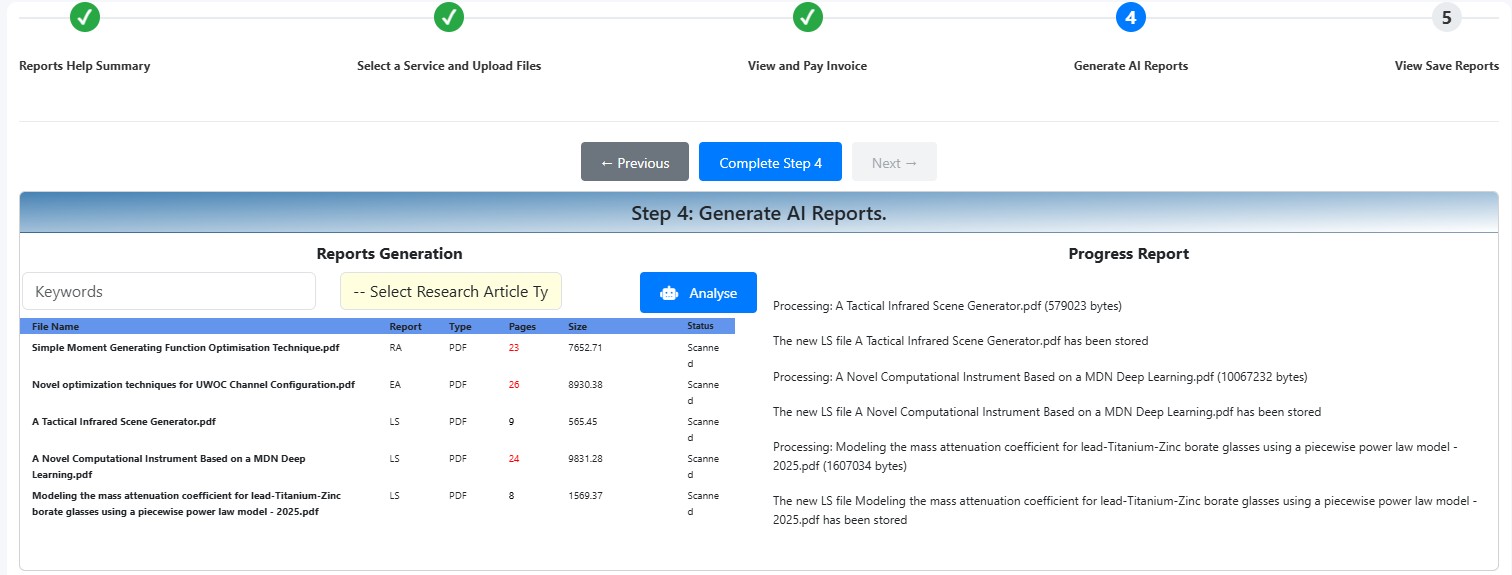
Fig.9-SMARTS Wizard Fourth Step - Generate AI Reports.
Step 5: View and Save Reports
Now you are ready to view the generated AI report list and selectively view individual reports. The screen of this wizard step includes two sections:
| Section | Contents | Purpose |
|---|---|---|
| (a) The report list (on the LHS of the screen) | 1- Search attribute field and search button 2- Show reports button (refresh the list button) 3- Report list |
To verify that the SMARTS AI engine had generated the reports. This list shows the generated reports for all selected services in a single connection session. |
| (b) Report Viewer | 1- File name 2- Print and save command buttons 3- Content area and scrolling control |
To view, save, and print the report. |
Table 3.-The Sections of the Fifth Step.
The list mainly includes three file extensions: PDF, DOCX, and XLSX. The outputs of the RA and EA reports are in PDF and DOCX formats, respectively, while the LS report is only in Excel (XLSX) format.
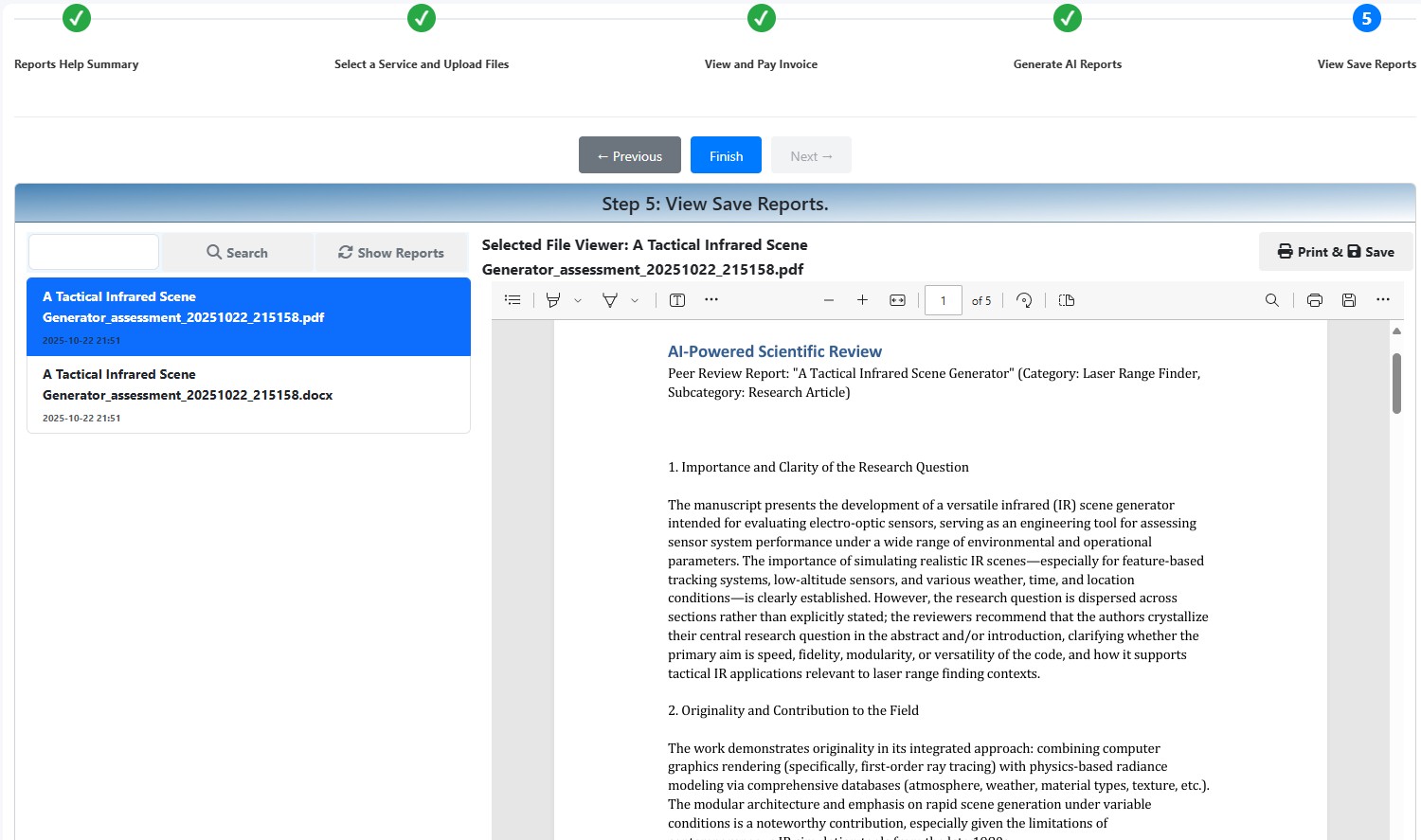
Fig.10-SMARTS Wizard Fifth Step - View and Save Reports.