Shakoo Makoo AI Services for HR (SMASHR)
Overview
SMASHR is a specialised service designed to assist job seekers, recruitment agents, and HR employees in preparing and assessing CVs/resumes against a defined job description (JD). Our AI engine helps determine gaps, refine CV focus for particular JDs, and rank applicants' CVs based on job requirements.
The 5-Step Job Application AI Reports Journey
Reports Help Summary
Initial guidance and summary of service requirements
Select Service & Upload Files
Choose AI service and upload PDF documents
View and Pay Invoice
Review and settle service invoice
Generate AI Reports
System processes files and generates reports
View/Save Reports
Access, view, and download generated reports
AI Service Descriptions
Choose the AI service that best matches your goal
| Report Name | Symbol | Max CV Files | Max File Size | Output Format | Cost (USD) |
|---|---|---|---|---|---|
| HR Assessment | HRA | 10 + 1 JD | 2 MB | PDF, DOCX | $10 |
| Gap Analysis | GAP | 1 + 1 JD | 2 MB | PDF, DOCX | $3 |
| CV Optimisation | CVO | 1 + 1 JD | 2 MB | PDF, DOCX | $4 |
| STAR Interview Prep | STI | 1 + 1 JD | 2 MB | PDF, DOCX | $2 |
HR Assessment (HRA)
Ideal For: Recruiters and HR professionals screening multiple applicants
Stop manually sifting through piles of CVs. The HR Assessment provides rapid, objective evaluation of up to 10 candidates against job descriptions.
- Quickly Shortlist Candidates: Get clear ranking and scores
- Objective Comparisons: Evidence-based breakdown of CV-JD matches
- Identify Strengths & Gaps: Pinpoint skills matches and deficiencies
- Save Time & Reduce Bias: Consistent, data-driven screening
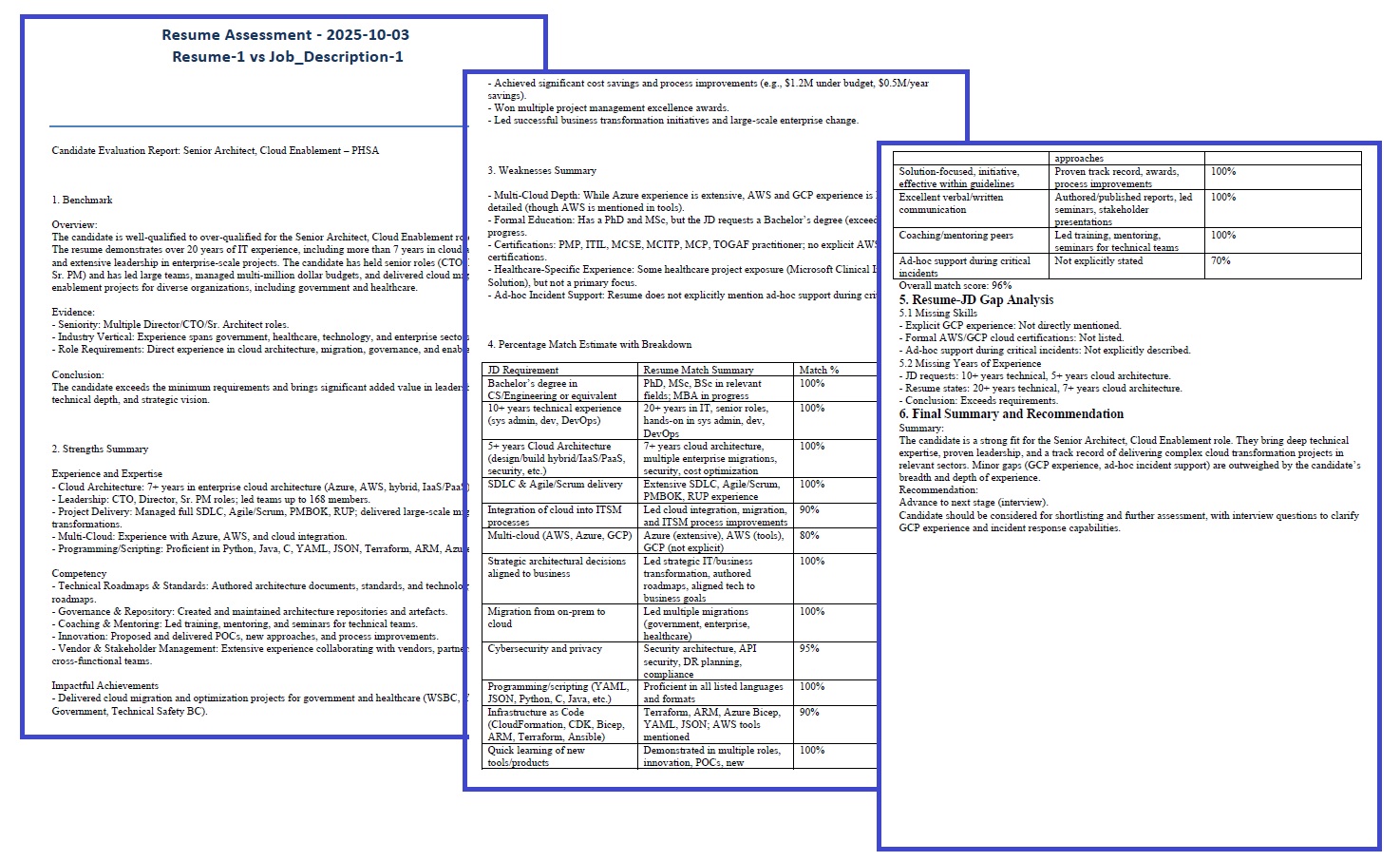
HR Assessment
Gap Analysis (GAP)
Ideal For: Job seekers understanding their fit for a specific role
Don't guess what the hiring manager wants. The Gap Analysis reveals exactly how your CV aligns with job requirements.
- Comprehensive Gap Summary: Overview of matches and mismatches
- Detailed Skills Matrix: Visual side-by-side comparison
- Missing Keywords: Identify crucial industry terms
- Actionable Recommendations: Tailored advice for improvement
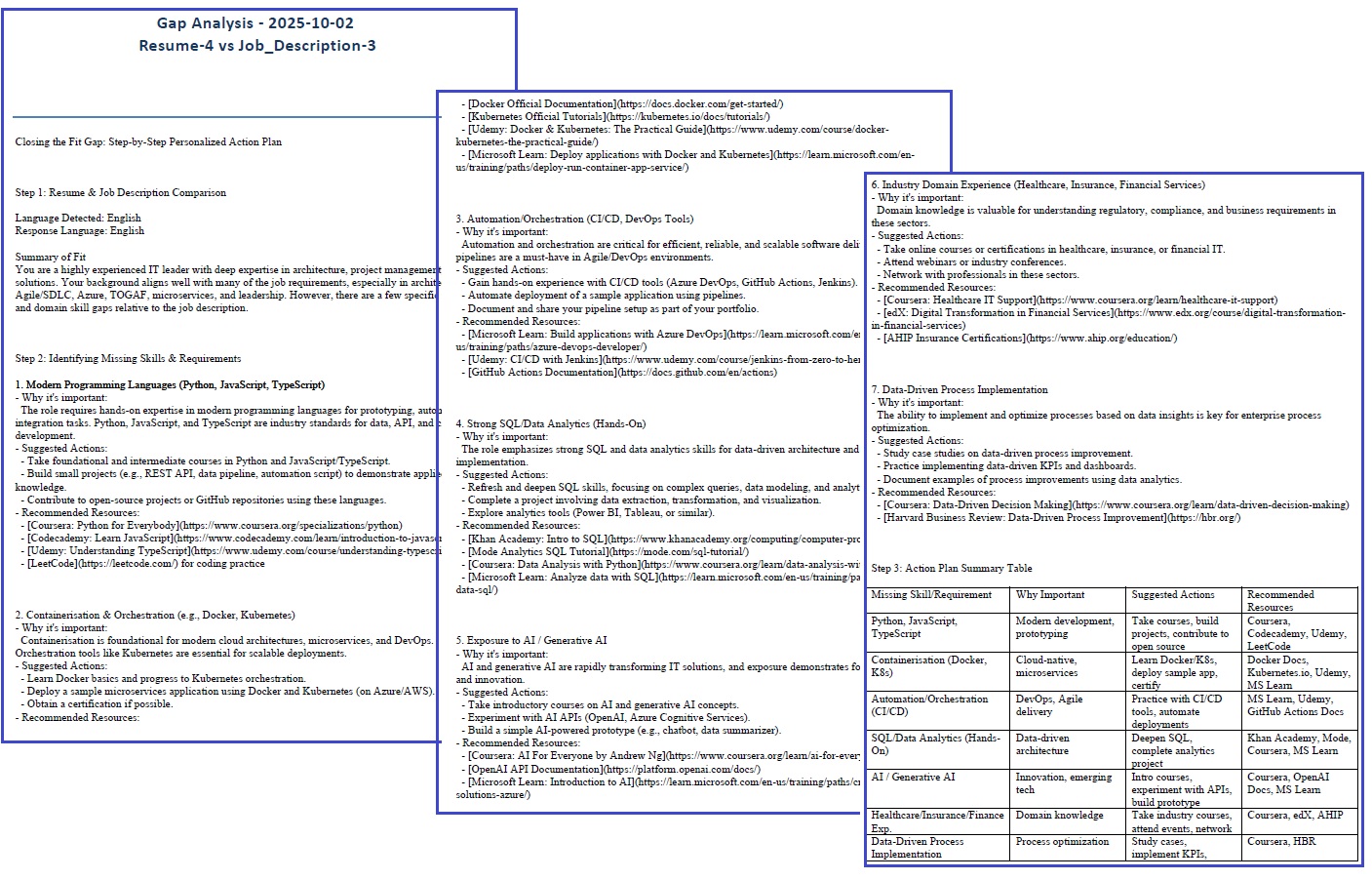
Gap Analysis
CV Optimisation (CVO)
Ideal For: Job seekers tailoring CVs for specific roles
Transform your generic CV into a targeted application. CV Optimisation rewrites and refines your CV for the job you want.
- Professionally Rewritten CV: Polished, ATS-friendly version
- Enhanced Achievements: Rephrased for impact and relevance
- Full Gap Analysis: Complete breakdown included
- Two Revision Rounds: Refined based on your feedback
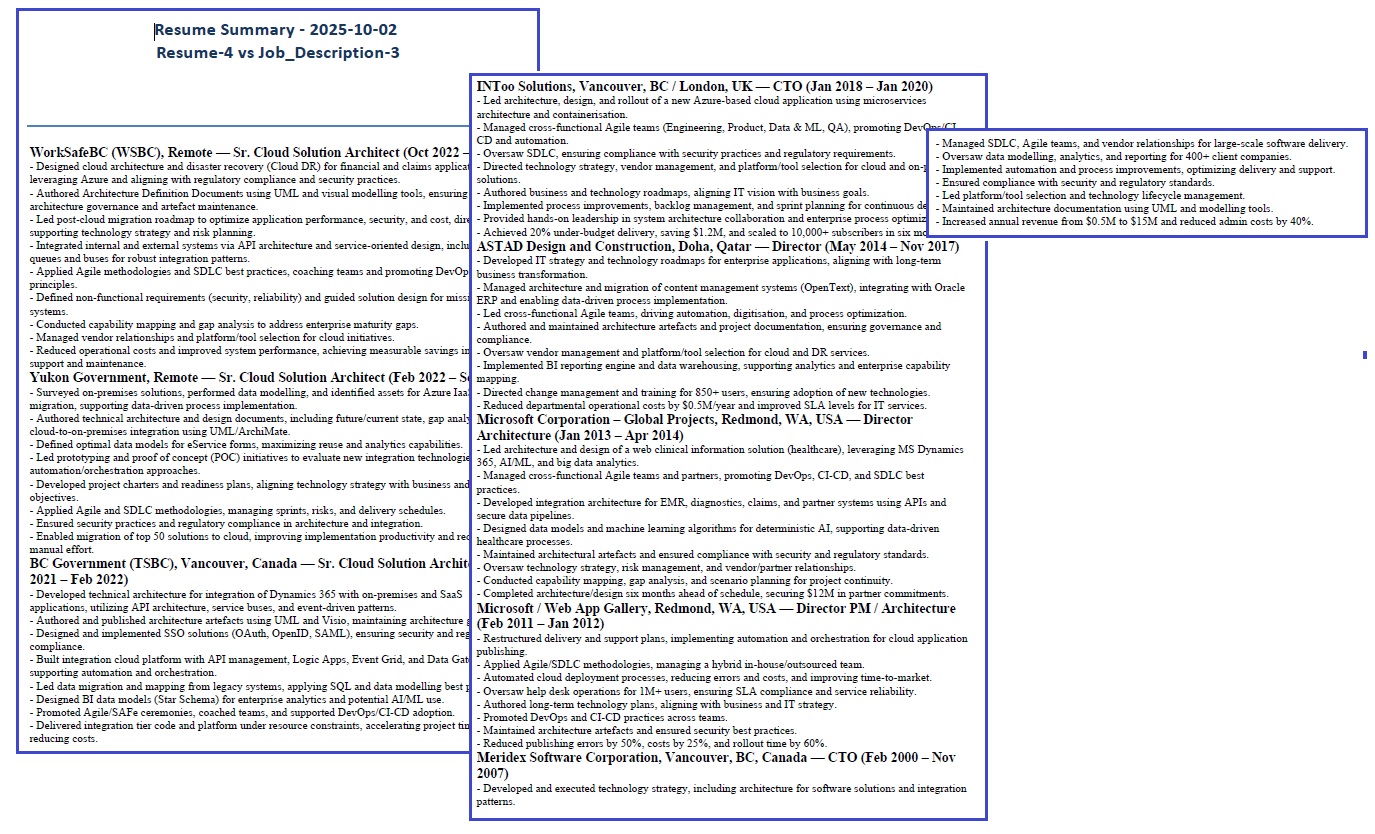
CV Optimisation
STAR Interview Q&A (STI)
Ideal For: Anyone preparing for job interviews
Walk into interviews with confidence. STAR Interview Q&A creates personalized questions and model answers using the proven STAR method.
- Predicts Likely Questions: Tailored behavioral questions
- Tactical Answer Examples: Well-structured STAR responses
- Boosts Confidence: Prepared, structured answers
- Ensures Relevance: Tied to job requirements and your background
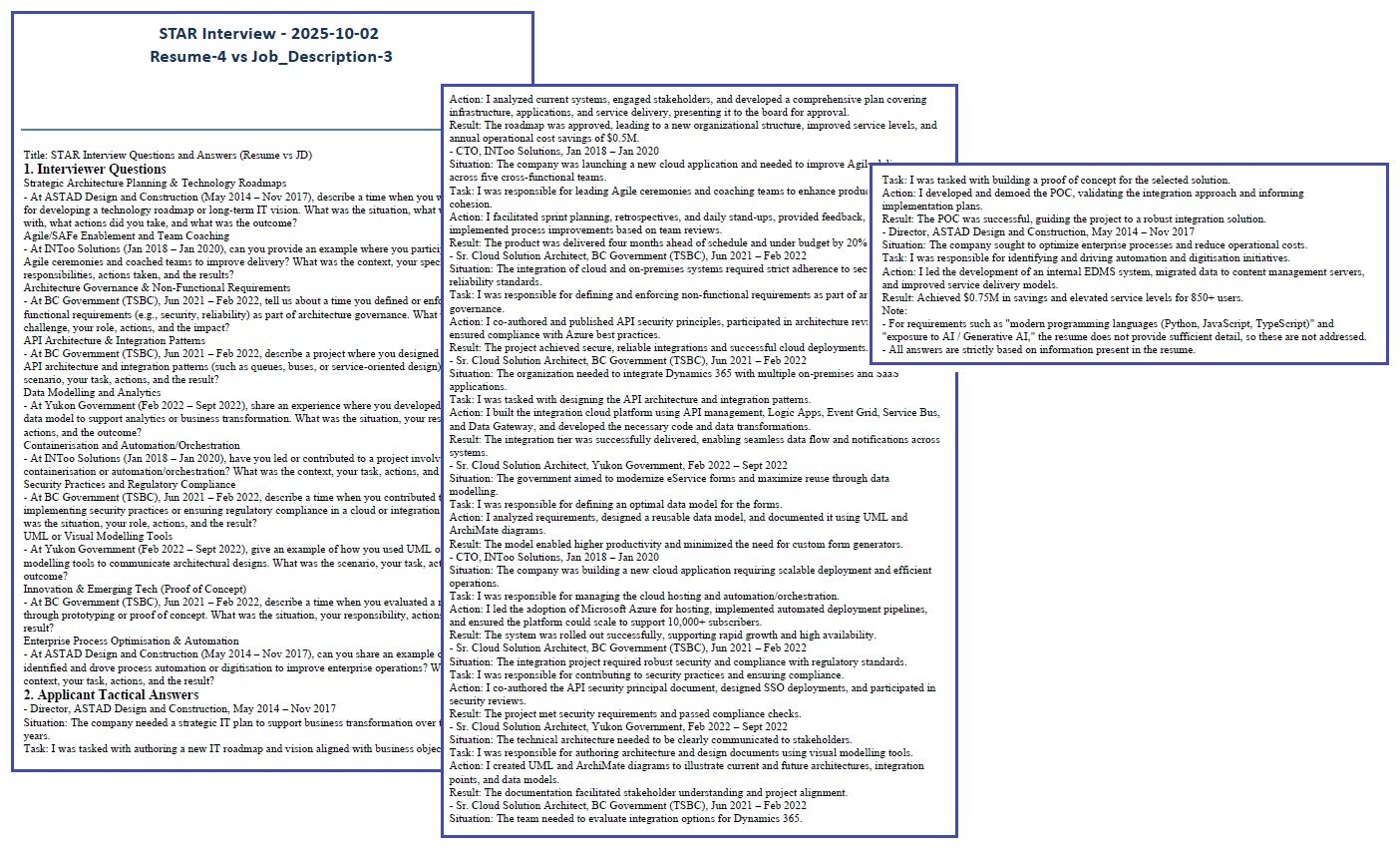
STAR Interview Prep Prep.
Viewing, Printing, and Saving Reports
Report List Section
- Search functionality
- Refresh list button
- Complete report history
- Organized by upload session
Report Viewer Section
- Embedded file viewing
- Print and save buttons
- Scrollable content area
- Local machine printing/saving
By following this structured journey, you can leverage AI to enhance the quality, rigour, and clarity of your job application before submission.
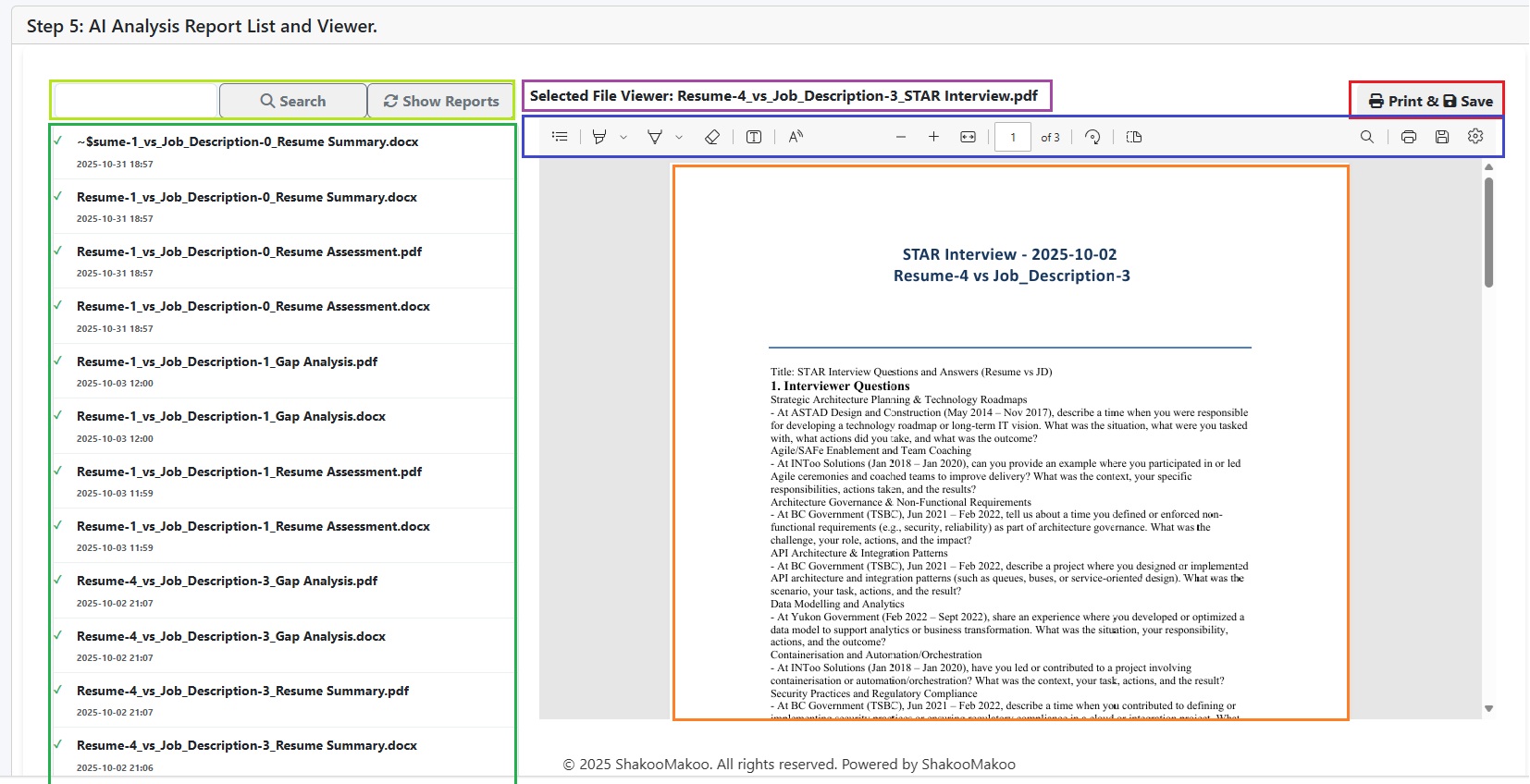
Viewing_Reports
Detailed Steps to Generate the SMASHR Reports
The SMASHR application has been constructed in a wizard-style dialogue. The application's vertical menu item is located on the left-hand side of the main screen.
Step 1: Reports Help Summary
Familiarize yourself with each service's benefits and select "Learn more" for complete details.
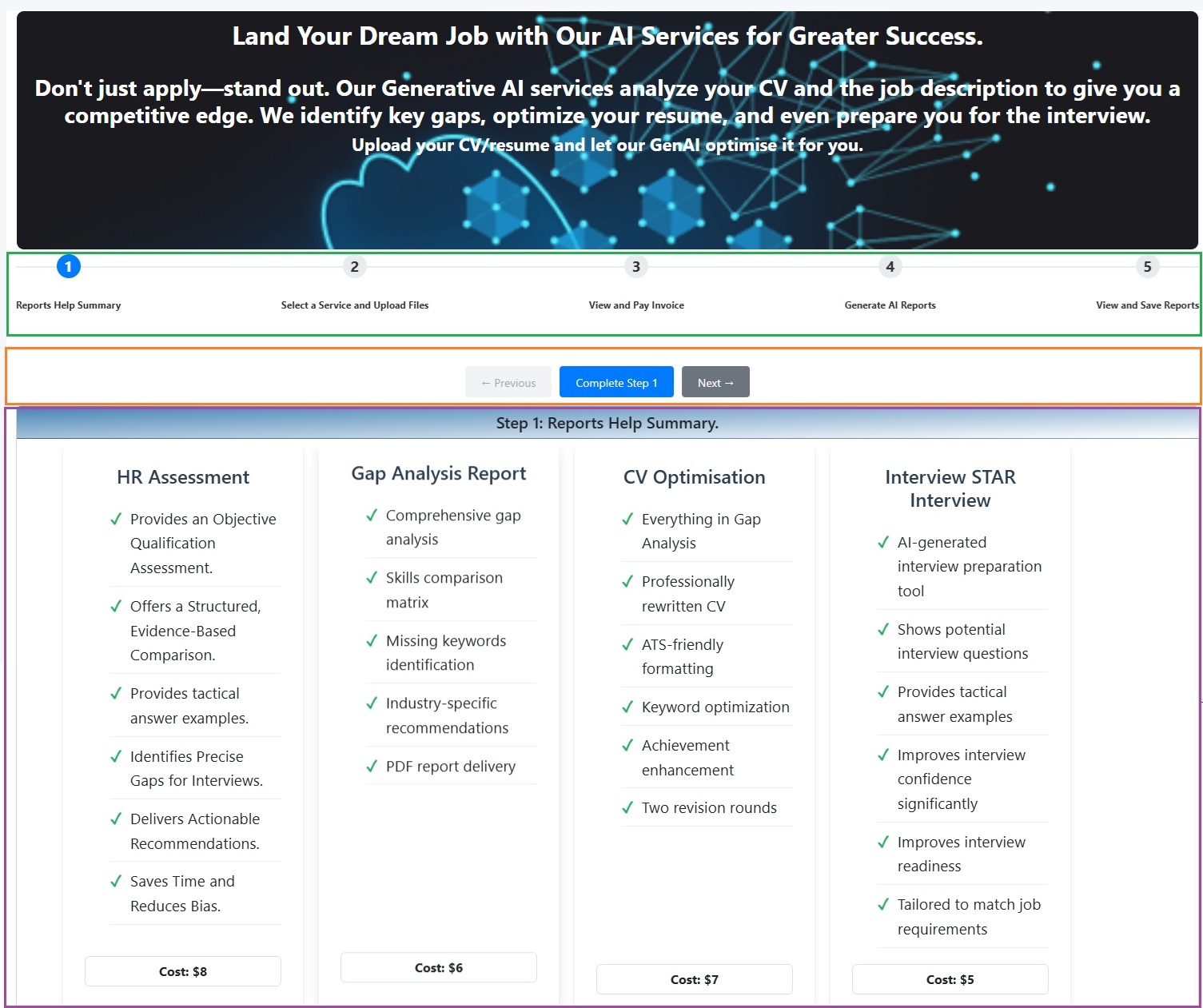
SMASHR Step 1 - Reports Help Summary
Step 2: Select a Service and Upload Files
- Maximum file size: 2MB per file
- Formats: PDF preferred (DOCX may contain macros that get rejected)
- HRA: Up to 10 CVs + 1 JD
- Other services: 1 CV + 1 JD
Use drag-and-drop or click to upload files. Check the file list to confirm successful upload.
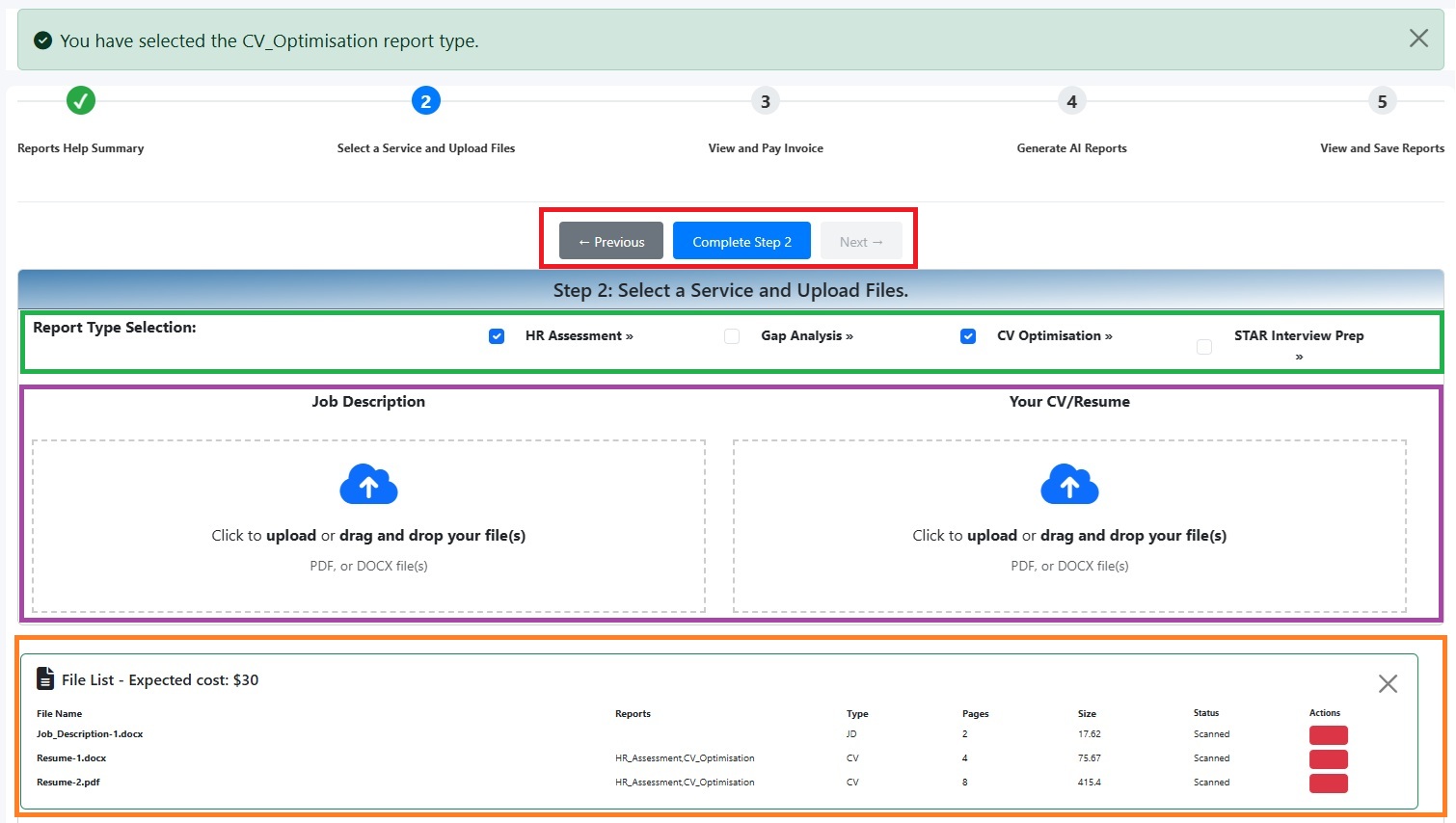
SMASHR Step 2 - Select a Service and Upload Files
Step 3: View and Pay Invoice
Review the invoice and enter card details to process payment.
- (a) Reviewing the Invoice: You can find the invoice in the top-left corner of the screen. It displays the selected AI services for each file, along with their corresponding costs in USD. The total amount due is shown at the bottom of the item list on the invoice. If you are not satisfied with your selection of AI services or the costs, you have the option to cancel. To cancel, click the "Cancel" button. The application will then return you to the first step.
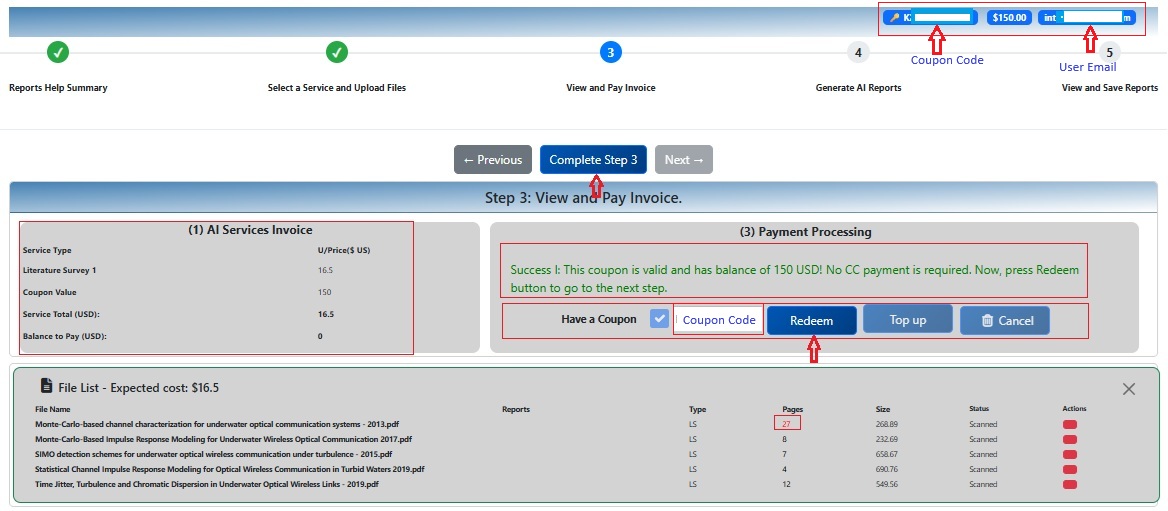
SMASHR Step 3 (a): View and Pay Invoice - Reviewing the Invoice
- (b) Entering an Eamil: To proceed, please enter a valid email address linked to your credit card (CC). After entering the email, the "Has a Coupon" checkbox and Coupon Code field will become active.
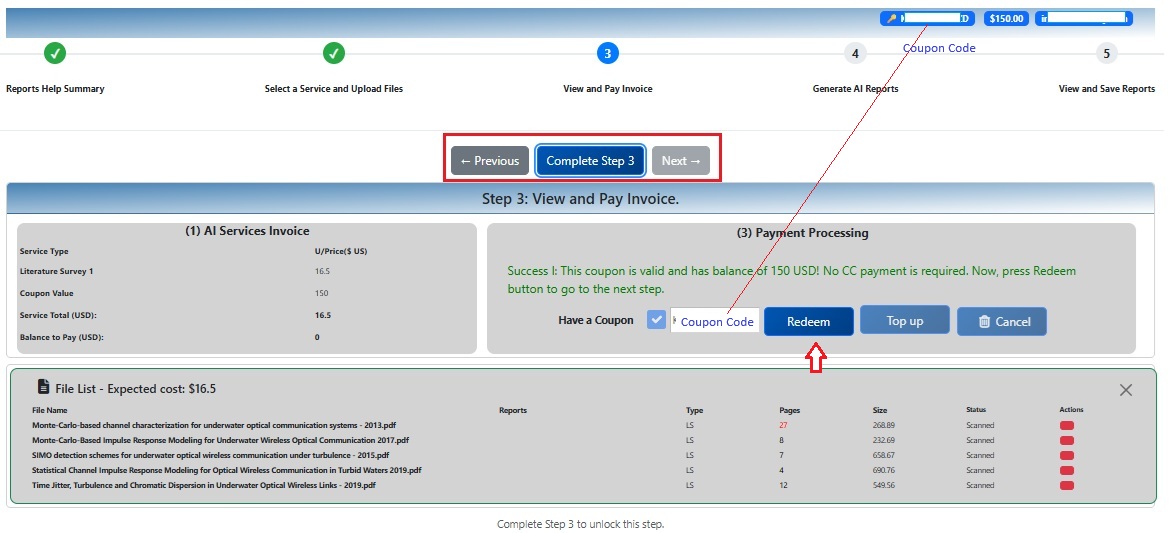
SMASHR Step 3 (b): View and Pay Invoice - Entering the Email
- (d) Redeeming the Coupon or Credit Card Payment: If you have an active coupon with a valid balance, the application will calculate the final amount due. If the total invoice amount is zero, the "CC Payment" button will be inactive, indicating that you can proceed to the report generation step. If the total is greater than zero, you will need to click the "CC Payment" button to move on to the next step.
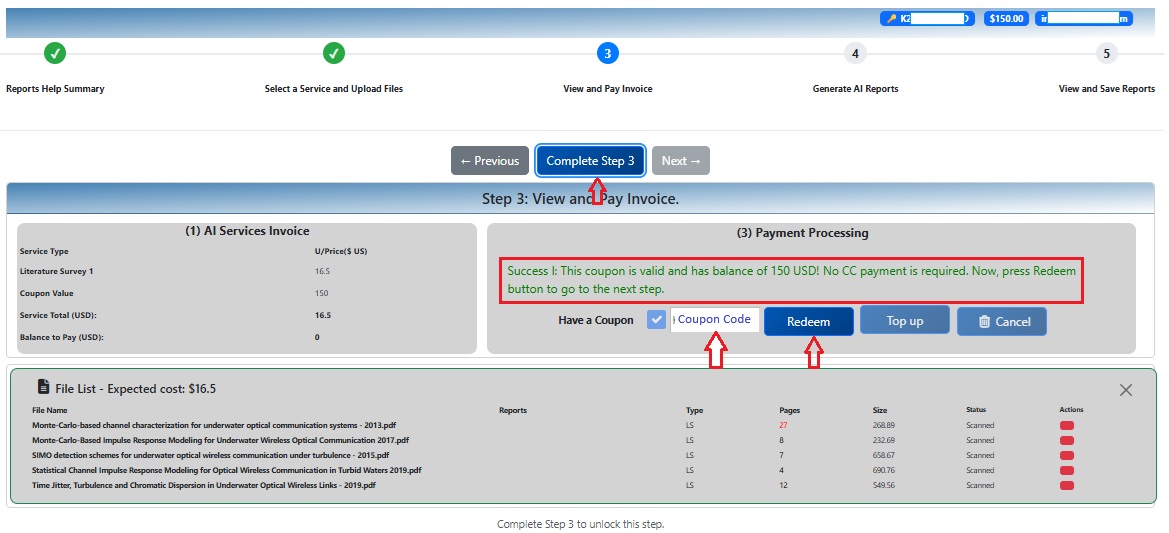
SMASHR Step 3 (c): View and Pay Invoice - Has a Coupon and Entering the Coupon Code
Step 4: Generate AI Reports
Provide additional context for better analysis:
- Country of hiring company
- Industry vertical
- Hiring department
- Company size (employees)
Monitor progress with real-time indicators during report generation.
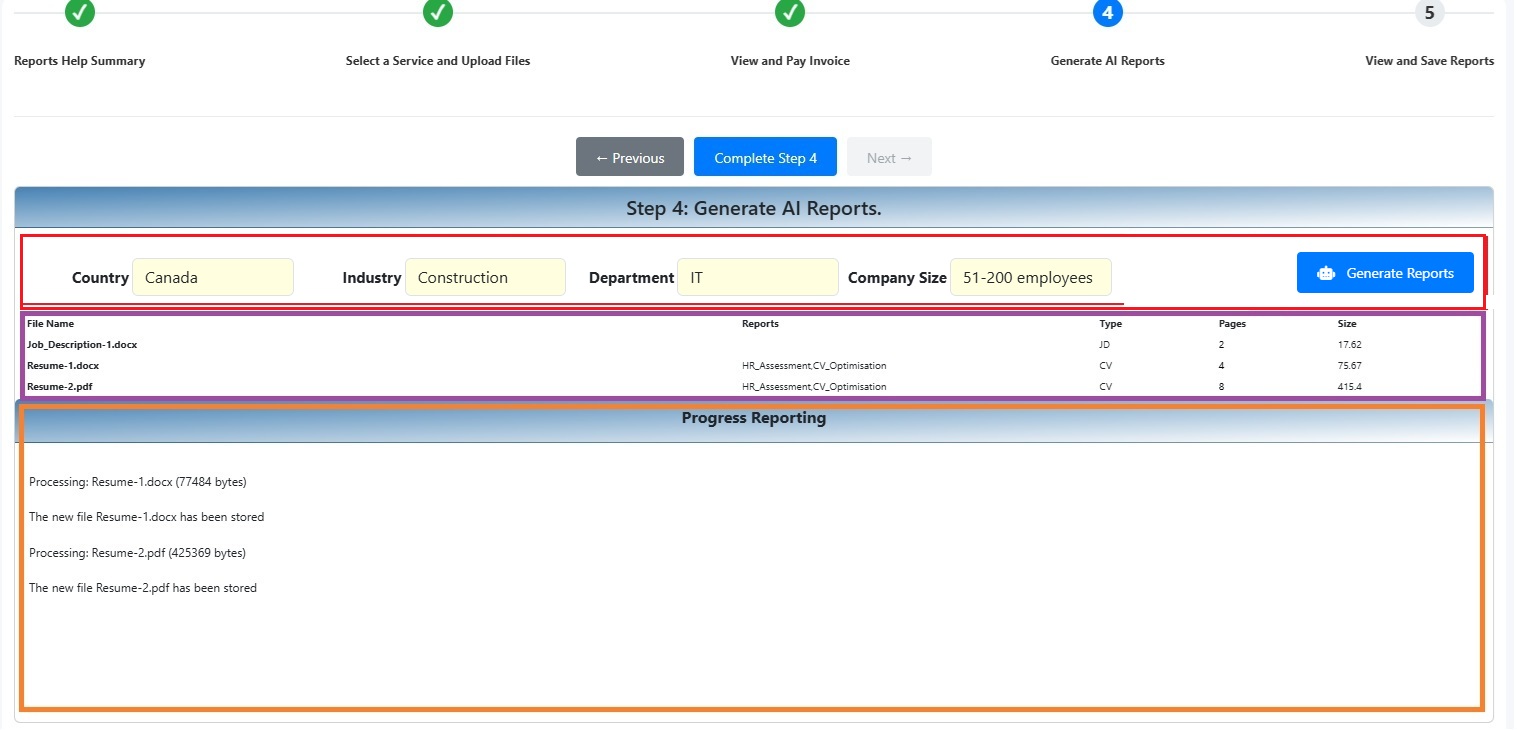
SMASHR Step 4 - Generate AI Reports
Step 5:View and Save Reports
Access all generated reports in one place:
- Search and filter reports
- View in embedded viewer
- Print or save to local storage/cloud
- Available formats: PDF, DOCX
SMASHR Step 5 - View and Save Reports
Need Help?
For technical issues or questions about bulk processing (100+ files), please contact our support team.
Team Experience: 40 years in software solutions, 18 years in AI/ML and GenAI design